Zap and step run statuses indicate whether your Zap or specific steps within it ran successfully or not. A Zap run status may differ from the statuses of its individual steps. The statuses are:
- Delayed.
- Errored.
- Filtered.
- Handled error.
- On hold.
- Needs review.
- Running.
- Safely halted.
- Scheduled.
- Skipped.
- Successful.
You can view them in your Zap history or in the Zap runs sidebar in the Zap editor. This article explains the meaning of each status.
Statuses
Delayed
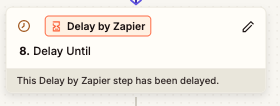
The Delayed status indicates that the Zap run has a Delay step that is postponing the completion of the Zap run. It displays a clock icon .
 .
.The Zap run and affected step run will have Delayed statuses, and all subsequent steps will have a Filtered status until the Zap continues running after the delay finishes. Their statuses will change based on whether they run successfully or not.
Your Zap has a Delay step that postpones the Zap run for 5 minutes. During that time, the Zap and the Delay step have Delayed statuses, while subsequent steps have Filtered statuses. After the 5 minute delay finishes, the Zap will continue running and the Zap run, Delay step run, and subsequent step runs will change.
Zap run status:

Step run status:
Errored
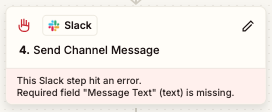
The Errored status indicates that the run encountered an issue and did not run successfully. It displays a hand icon .
 .
.The Zap run, affected step run, and all subsequent Zap steps that depend on fields mapped from this step will have Errored statuses. If a Zap errors repeatedly each time it runs, it will automatically turn off. Learn how to troubleshoot errors in Zap workflows.
The Message Text field in Slack’s Send Channel Message action is a required field. If the values sent to that step are blank, the Zap run, the step run, and all subsequent Zap steps that depend on fields mapped from this step will have Errored statuses.
Zap run status:

Step run status:
Filtered
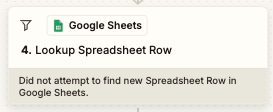
The Filtered status indicates that the conditions in a Filter step were not met, so the Zap did not run any subsequent steps. It displays a filtered icon .
 .
.The Zap run, affected Filter step, and all subsequent steps will have Filtered statuses.
You set up a Filter step with the condition that the Zap will only continue if the input text contains the word “Zebra”. If the word is not found, the Zap run, the Filter step, and all subsequent steps will have Filtered statuses. The Zap will not run past the Filter step.
Zap run status:

Step run status:
Handled error
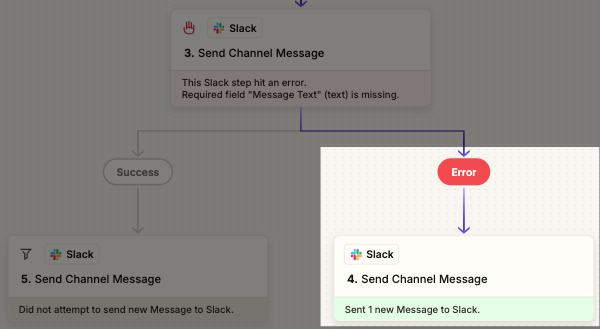
The Handled error status indicates that an error handler ran as an alternative workflow after a step errored. It displays a hand icon .
Only the Zap run will have a Handled error status. The errored step it branches from will have an Errored status. Steps within the error handler will have their own statuses based on whether they run successfully or not. Unlike the Errored status, a Zap will not turn off automatically if a Zap's error is handled multiple times.
You set up an error handler to run if your Slack step errors. When it does the:
- Zap run has a
Handled errorstatus. - Step the error handler branches from has an
Erroredstatus. - The error handler path runs and the error path is highlighted.
- Any steps in the error path have their own step run statuses.
Zap run status:

Step run status:
On hold
The On hold status indicates that the run is paused. It displays a pause icon .
 .
.The Zap run and affected step run will have On hold statuses and all subsequent steps will have Filtered statuses. Common causes include disconnected app accounts, task limit overages, and app access policies that restrict or prohibit the app. You can attempt to replay Zap workflows or steps that are on hold. Learn why runs are held and how to troubleshoot them.
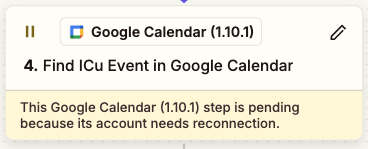
You created a Zap that includes a Google Calendar step. Later, the Google Calendar app connection used in the Zap expired. When your Zap runs again, the Google Calendar has an On hold status because it cannot run until the Google Calendar app connection is reconnected. If you reconnect the Google Calendar app connection and replay the Zap, the Zap run, affected Delay step run, and subsequent step runs will change.
Zap run status:

Step run status:
Needs review
The Needs review status indicates that a step requires human review before the Zap can proceed. This can happen for apps like Zapier Agents or Human in the Loop. It displays a thumbs up icon .
 .
.The Zap run and affected step run will have Needs review statuses. All subsequent steps will have Filtered statuses until a reviewer completes the review.
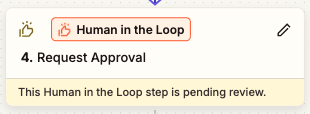
Your Zap has a Human in the Loop step that requires a reviewer to approve before the Zap can continue. Until then, the Zap run and affected Human in the Loop step have Needs review statuses, and all subsequent steps have Filtered statuses.
Zap run status:

Step run status:
Running
The Running status indicates that the run is in progress. It displays a running icon .
 .
.The Zap run and affected step run will have Running statuses. All subsequent steps will have Filtered statuses until they start running. You may see the Running status when performing end-to-end testing of your Zap and in steps that take a long time to run, like Code or steps that use AI.
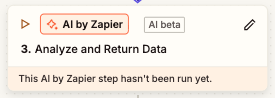
An AI by Zapier takes a few seconds to process. During that time, the Zap run and affected AI by Zapier step will have Running statuses. All subsequent steps will have Filtered statuses until they run.
Zap step status:

Step run status:
Safely halted
The Safely halted status indicates that the run purposely stopped. It displays a clock icon .
This usually occurs in search action steps when they find no results. The Zap run and affected step run have Safely halted statuses. Subsequent steps will still run, but if they have required fields mapped from this step, they will error. Unlike the Errored status, a Zap will not automatically turn off if a Zap halts multiple times.
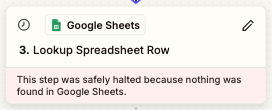
Your Zap has a search action step that looks for a spreadsheet row in Google Sheets based on a search string you provide. If no row matches your search string, the Zap run and affected step run will have Safely halted statuses. Subsequent steps will have their own statuses based on whether they run successfully or not.
Zap run status:

Step run status:
Scheduled
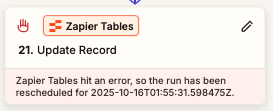
The Scheduled status indicates that the Zap run is scheduled to re-run because it encountered an error and autoreplay is enabled in your account. It displays a clock icon .
The Zap run and all Zap steps that errored will have Scheduled statuses. When it re-runs, they will have have new statuses based on whether they run successfully or not.
Your Zapier Tables step errored. Since Autoreplay is enabled in your account, your Zap status is Scheduled while the Zap attempts to replay the errored steps.
Zap run status:

Step run status:
Skipped
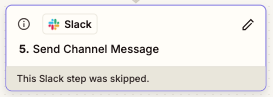
The Skipped status indicates that a step did not run because of the result of a preceding step in the Zap. It displays the info icon .
 .
.You will only ever see this as a step run status, not a Zap run status. It does not appear in Zap runs. Instead, it appears as note on the bottom of the affected step in the Zap outline. It can occur when the affected step requires data from a mapped field, but the preceding step that contains the mapped field halted.
The Slack step has a required field that is mapped to a preceding search action step. The search action did not find anything, so there was no value to send to this step and it was skipped.
Step run status:
Successful
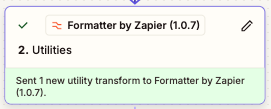
The Successful status indicates that the run completed without issues. It displays a check mark icon .
 .
.Individual steps can have Successful statuses. The Zap run will only have a Successful status if alls steps have Successful statuses.
Every step in your Zap ran without issues, including your Formatter step.
Zap run status:

Step run status:
Deleting Zap runs
A Zap run's status determines what happens when you delete a Zap run.
If you see a Running, Needs review, On hold, Delayed, or Scheduled status, the the Zap has not finished running the action yet. Deleting the Zap run prevents the Zap from finishing the run. It also deletes the record of the run.
For all other statuses, the Zap finished running the action. Deleting the Zap run only removes the record of the run. It will not undo the action.
Additional Info
- Zap run statuses may be caused by more than one status, but the Zap run will only display one status.
- You can replay Zap steps or entire runs.
- If the Zap polls for new data and does not trigger, this will not appear in Zap runs.
-
When a Paths step runs, as long as all other steps are successful:
- If a path’s conditions are met, the path and the Zap will both have Success statuses.
- If a path’s conditions are not met, the path will have a
Filteredstatus and the Zap will have a Success status.
- Human in the Loop actions may have special run statuses.