The App Connections page provides a centralized place for you to manage your apps within Zapier. This page allows you to test, reconnect, rename, transfer ownership of, and delete connections, ensuring continuous workflow automation.
It’s organized into two tabs:
- Connections
- Apps
Connections tab
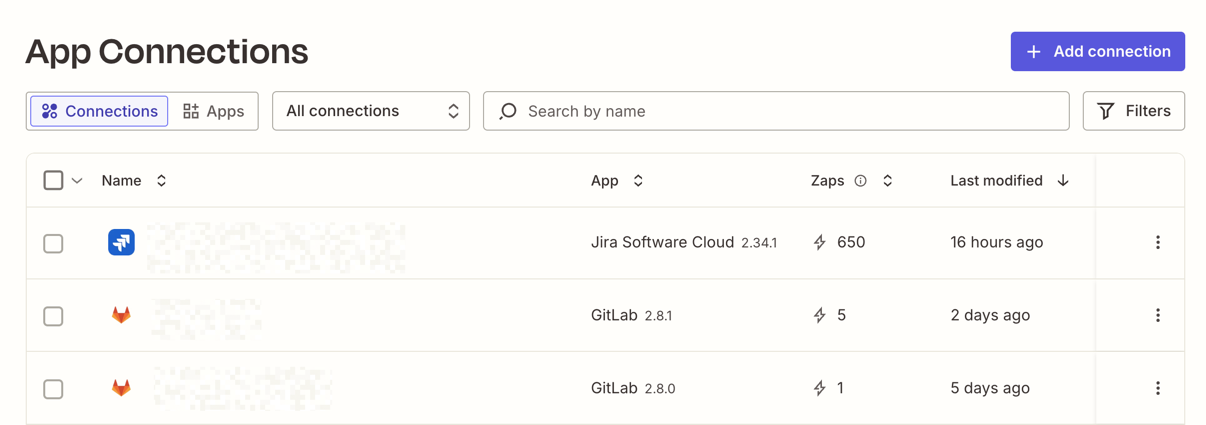
The Connections tab displays a list of all app connections in your account. You can filter by status (active, expired or non-compliant), the app name, or owner of the connection by clicking the Filters button. Each app in the list includes the following info:
 Filters button. Each app in the list includes the following info:
- Name: the name of the connection.
- App: the app that Zapier connected to.
- Zap workflows: the number of Zap workflows associated with the connection.
- Last modified: the last time the connection was changed, including testing the account.
- People with access: displays the avatars of all users who you shared the connection with.
The dropdown field allows you to filter which apps are displayed:
- All connections: app connections that you own or have access to.
- Owned by me: app connections that you own.
- Shared with me: app connections that your teammates shared with you.
Apps tab
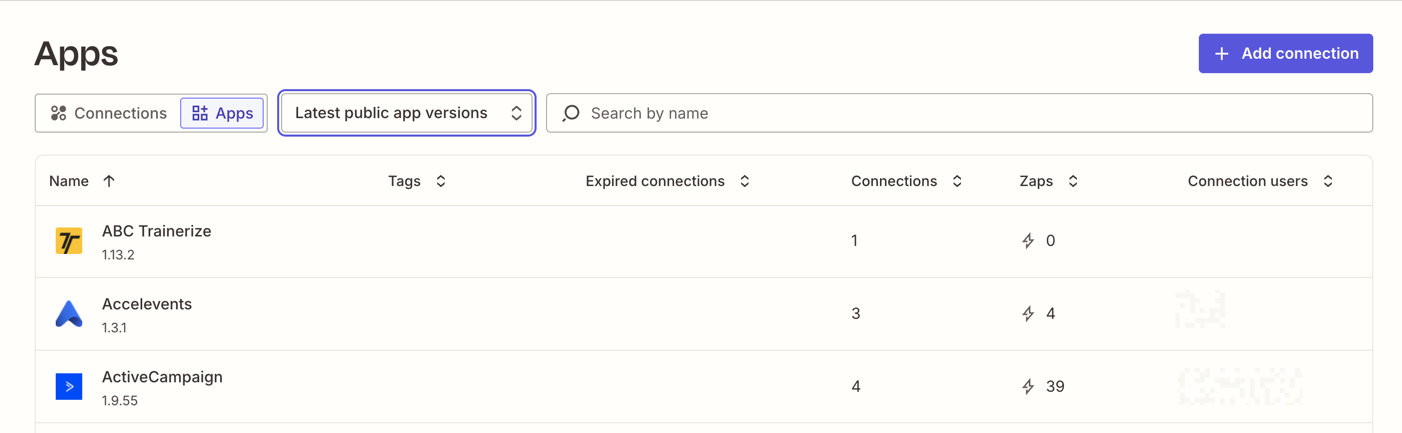
The Apps tab displays a list of all apps that are connected to your Zapier account. Each app in the list includes the following info:
- Name: the app name and version number.
- Tags: displays a tag when the app is a premium app.
- Expired connections: the number of connections that require reauthorization.
- Connections: the number of connections to that app in your account.
- Zap workflows: the number of Zap workflows associated with all connections for that app.
- Connection users: the users in your account who use that connection.
Filter apps
The dropdown field allows you to filter which apps are displayed:
- Latest public app versions: app connections that use the latest public version of each app.
- Other app versions: app connections that use private, deprecated, or legacy (hidden) versions of apps. Learn more about app tags in Zapier.
Reconnect your account
You can reconnect your app accounts at any time. This is helpful when an app connection expires. To reconnect an app connection:
- Go to the App Connections page.
- Click Reconnect next to the expired icon . This option is only available for connections you own. A dialog box will appear.
- Click Reconnect. A new browser tab or window will open.
- Follow the instructions to connect your app account.
 . This option is only available for connections you own. A dialog box will appear.
The app account will be reconnected for all Zap workflows, agents, and other Zapier products that use it.
Test your app connection
After setting up an app connection, you can test it to confirm it’s successfully connected. To test if your app connection is still active:
Connections tab
- Go to the App Connections page.
- Click the menu icon in the app connection you want to test. A dropdown menu will open.
- Click Test connection.
-
The connection will display one of the following icons:
- Active : the connection is active.
- Expired : the connection is no longer active. You will also find a Reconnect button next to the icon. Reconnect your app account to continue using it.
 in the app connection you want to test. A dropdown menu will open.
 Test connection.
 : the connection is active.
Apps tab
- Go to the App Connections page.
- In the top left, select the Apps tab.
- Click the app with the app connection you want to test.
- Next to the app connection you want to test, click the menu icon next to the app connection.
- In the dropdown menu, select Test connection.
-
The connection will display one of the following messages:
- Test successful: the connection is active.
- Reconnect app: the connection is no longer active. Reconnect your app account to continue using it.
Connect to a different account
You can switch an app connection to use a different account. This is helpful when a user leaves your organization or you want to use different credentials.
- Go to the App Connections page.
- In the top left, select the Apps tab.
- Click the app with the app connection you want to change.
- Next to the app connection, click the menu icon .
- In the dropdown menu, click Replace connection. A new browser tab or window will open.
- Sign in with the different account you want to use.
 Replace connection. A new browser tab or window will open.
All Zap workflows, agents, and other automations using this connection will now use the new account.
Rename your app connection
Zapier often displays usernames or email addresses to identify app connections, however you can rename app connections. This is helpful when you want to add details about their purpose or account type, such as “Gmail - Marketing” or “Salesforce - Project Alpha”.
To rename an app connection:
- Go to the App Connections page.
- Next to the app connection you want to rename, click the menu icon .
- In the dropdown menu, click Rename. A dialog box will appear.
- In the Name field, enter the new name for your app connection.
- Click Save.
 Rename. A dialog box will appear.
Your app connection will be updated to reflect its new name.
Share an app connection
Available on plans:

Free
Professional

Team
Enterprise
You can share app connections with members of your Team or Enterprise account. This allows them to use the app account in their Zap workflows, agents, and other automations without having access to your credentials.
If you later stop sharing a connection, any published Zap workflow that relies on it pauses. Learn more about what happens when a shared connection is revoked.
Learn more about how to share an app connection in your Zapier account.
Change app connection ownership
Available on plans:
Free
Professional
Team
Enterprise
You can transfer ownership of your app connections to another user in your Team or Enterprise account. To change ownership of an app connection:
- Go to the App Connections page.
- In the top left, select the Apps tab.
- Click the app with the app connection you want to change ownership of.
- Next to the app connection, click the menu icon .
- In the dropdown menu, select Change owner. A dialog box will appear.
- In the Choose a new owner field, search for and select the user you want to transfer ownership to.
- Click Change owner.
 Change owner. A dialog box will appear.
When you transfer an app connection, the connected account remains the same. Only the owner of the connection changes.
Delete your app connection
To delete an app connection from your Zapier account:
Connections tab
- Go to the App Connections page.
- Click the menu icon next to the app connection you want to delete. A dropdown menu will open.
- Click Delete. A dialog box will appear.
- Click Delete connection to finish disconnecting your app connection.
 Delete. A dialog box will appear.
Apps tab
- Go to the App Connections page.
- In the top left, select the Apps tab.
- Click the app with the app connection you want to disconnect.
- Next to the app connection you want to disconnect, click the menu icon next to the app connection.
- In the dropdown menu, click Delete. A dialog box will appear.
- Click Delete to finish disconnecting your app connection.
Once deleted, Zapier will no longer have access to that account. You must update any Zap workflows, agents, or other automations that use the connection, replacing it with a new connection.
For users on the Enterprise plan, you can control app access in your Zapier account.
Bulk test or delete connections
You can select multiple app connections and test or delete them all at once, rather than managing each connection individually.
To bulk test or delete connections:
- Go to the App Connections page.
- Select the checkbox next to each connection you want to manage. You can select up to 100 connections at a time.
-
In the action bar that appears at the bottom of the screen, click one of the following:
- Test selected: Tests all selected connections and displays their status (active or expired).
- Delete selected: Opens a confirmation dialog. Click Delete to remove all selected connections.
 Note
NoteIf you delete any connections, update Zap workflows, agents, or other automations that use it to ensure they keep running.
Common app authentication issues
Authentication issues can occur due to several reasons:
- Incorrect credentials: Double-check your username and password for typos when connecting your app.
- Insufficient permissions: Ensure your app account has the necessary permissions and paid plan. You may need to contact the app’s administrator for assistance.
- Expired app connections: You must reconnect your app connection if your password changed recently or if your organization enforced additional security controls.
- Two-factor authentication (2FA): You cannot connect some apps if you enable 2FA.
- Credential or domain change: If you change your associated email address or domain on an app since connecting to Zapier, existing connections may require a reconnection.
For more troubleshooting information, review these articles:
- Can’t access or use Zapier with other apps.
- App connection error: “Not authenticated” or “Unauthorized”
Limitations
- Each user can have up to 5,000 app connections.
- If you share a Zap or other automation without sharing the app connections it uses, other users will not be able to edit or view the configuration of any step that uses those app connections.
Next steps
- Share app connections with members of your Team or Enterprise account.
- Set up managed apps to centralize control over sensitive app connections.
- Restrict app connections to allowed domains.
- Export your app connection metadata for auditing.