Zapier Lead Router offers Zap actions for managing your sales reps and queues. You can use these actions to automate tasks like onboarding new reps, syncing rep data from a CRM, adjusting queue assignments, and toggling rep availability.
This article covers using Zap workflows to manage sales rep and queue management actions. You can also use Zap workflows to send leads to Lead Router.
Available actions
The Zapier Lead Router app includes the following management actions:
| Action | Description |
|---|---|
| Create Sales Rep | Add a new sales rep to Lead Router |
| Remove Queue Membership | Remove a rep from a queue |
| Find Sales Rep(s) | Search for reps using custom fields |
| Update Sales Rep | Modify existing sales rep details or status |
| Update Queue Membership | Manage a rep's queue assignment, weight, or queue-level status |
Before you begin
To use these actions, you need:
- A Lead Router setup with at least one queue.
- A Zap with a trigger step configured.
Set up an action
Create a sales rep
Use the Create Sales Rep action to add a new rep to Lead Router.
- In the Zap editor, select the Action step.
- In the search box, search for and select Zapier Lead Router. The right sidebar will open to the Setup tab.
-
Click the Action event dropdown menu.
- Select Create Sales Rep.
- Click Continue.
-
In the Configure tab:
- Status: Choose from the dropdown menu — select Active if the rep should receive leads, or Inactive if the rep should not be assigned new leads.
- First Name: Enter the rep's first name.
- Last Name: Enter the rep's last name.
- Email: Enter the rep's email address.
- Fill out any custom sales rep fields configured in your Lead Router fields.
- Click Continue.
-
Click Test step to check if the step is working correctly.
- You can click Skip test to test later.
Remove queue membership
Use the Remove Queue Membership action to remove a rep from a queue.
- In the Zap editor, select the Action step.
- In the search box, search for and select Zapier Lead Router. The right sidebar will open to the Setup tab.
-
Click the Action event dropdown menu.
- Select Remove Queue Membership.
- Click Continue.
-
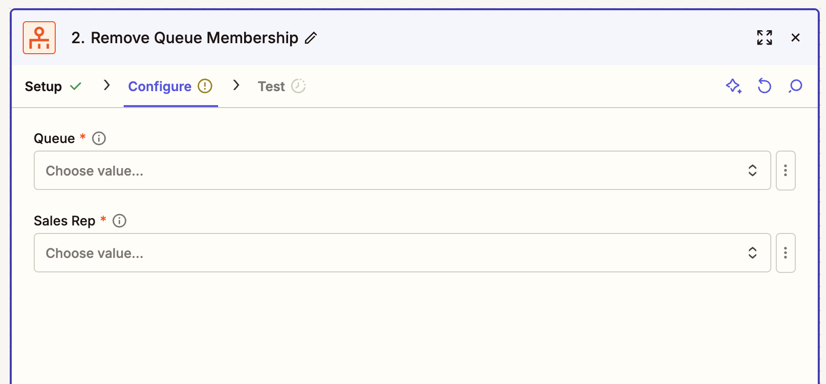
In the Configure tab:
- Click the Queue dropdown menu and select the queue.
- Click the Sales Rep dropdown menu and select the rep. Only current queue members appear as selectable options.
- Click Continue.
-
Click Test step to check if the step is working correctly.
- You can click Skip test to test later.
If the rep is not a member of the selected queue, the step does not return an error. It returns the list of remaining active members in the queue.
Find a sales rep
Use the Find Sales Rep(s) action to search for an existing rep's information and use it in a later step in the Zap, such as for updating their details or managing their queue membership.
- In the Zap editor, select the Action step.
- In the search box, search for and select Zapier Lead Router. The right sidebar will open to the Setup tab.
-
Click the Action event dropdown menu.
- Select Find Sales Rep(s).
- Click Continue.
-
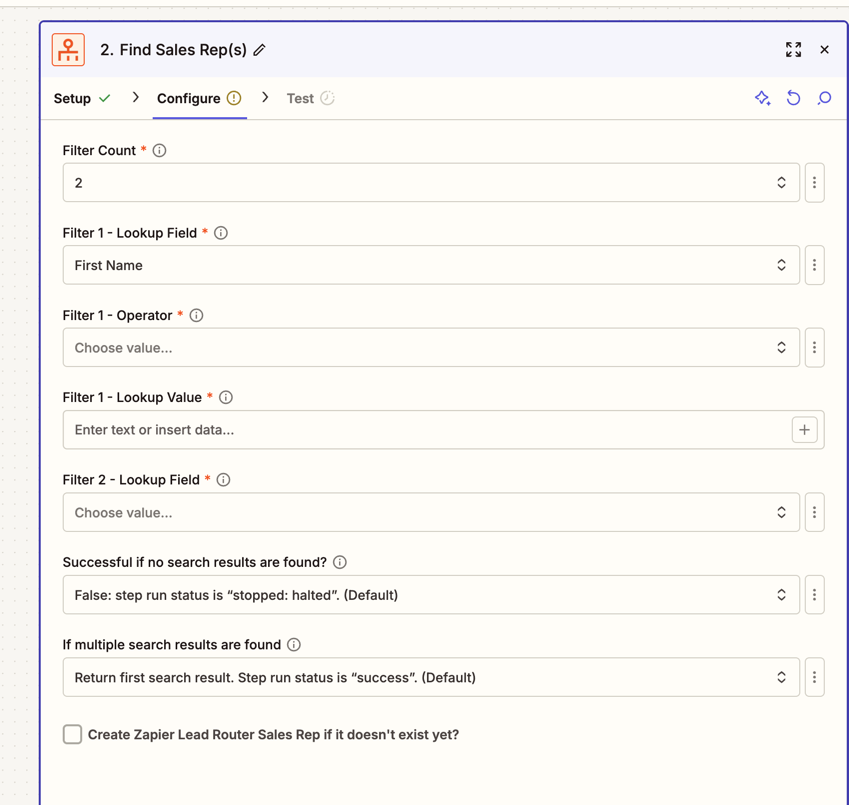
In the Configure tab:
- Click the Filter Count dropdown menu to select how many filter fields to use, from 0 (retrieve all reps) to 5.
-
For each filter, select the Lookup Field you want to filter by, such as First Name or Email. Once selected, two additional fields appear:
- Operator: select how the value should be matched.
- Lookup Value: enter or map the value to search for.
- In the Successful if no search results are found? dropdown menu, select what happens when no reps match your filters.
- In the If multiple search results are found dropdown menu, select whether to return the first result or all results.
- (Optional) Select the Create Zapier Lead Router Sales Rep if it doesn't exist yet? checkbox to automatically create a new rep when no match is found.
- Click Continue.
-
Click Test step to check if the step is working correctly.
- You can click Skip test to test later.
If the action returns multiple reps, you can use Looping by Zapier to iterate over the results.
Update a sales rep
Use the Update Sales Rep action to modify an existing rep's details and availability.
- In the Zap editor, select the Action step.
- In the search box, search for and select Zapier Lead Router. The right sidebar will open to the Setup tab.
-
Click the Action event dropdown menu.
- Select Update Sales Rep.
- Click Continue.
-
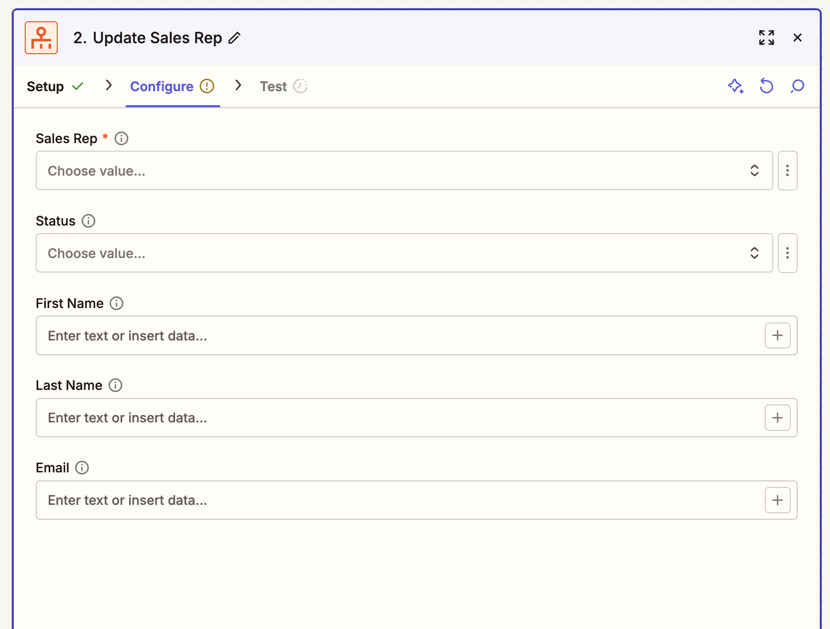
In the Configure tab:
- Click the Sales Rep dropdown menu and select the rep you want to update. You can also map this value from a previous Create Sales Rep or Find Sales Rep step.
- Click the Status dropdown menu to set the rep's status. Learn more about updating a sales rep status.
- Enter a value in any of the existing fields to update it, including global capacity fields. Learn more about capacity levels and window types in Lead Router.
- Click Continue.
-
Click Test step to check if the step is working correctly.
- You can click Skip test to test later.
Update queue membership
Use the Update Queue Membership action to manage a rep's queue assignment.
- In the Zap editor, select the Action step.
- In the search box, search for and select Zapier Lead Router. The right sidebar will open to the Setup tab.
-
Click the Action event dropdown menu.
- Select Update Queue Membership.
- Click Continue.
-
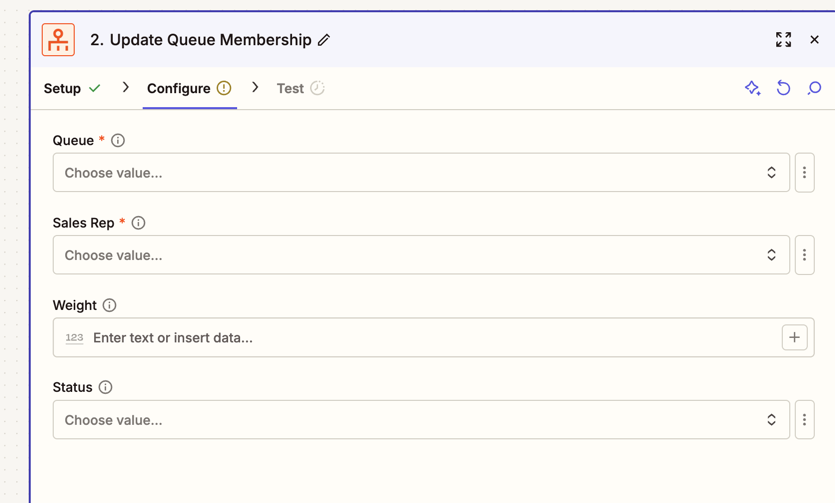
In the Configure tab:
- Click the Queue dropdown menu and select the queue.
- Click the Sales Rep dropdown menu and select the rep.
- In the Weight field, enter a custom weight for weighted round robin distribution. A rep with a higher weight receives proportionally more leads.
- Click the Status dropdown menu to set the rep's queue-level status. Learn more about updating a sales rep status.
- Enter a value in the queue capacity fields to set a rep's limit for this queue, including an effective from date. Learn more about capacity levels and window types in Lead Router.
- Click Continue.
-
Click Test step to check if the step is working correctly.
- You can click Skip test to test later.
Updating a sales rep status
You can set a sales rep's status to Active or Inactive through the Update Sales Rep and the Update Queue Membership action. Use this to automate availability, such as setting a rep to Inactive when they go on leave and back to Active when they return.
When a rep is set to Inactive:
- The rep stays in their queues with all weights unchanged.
- The rep will not receive any new leads until their status is set back to Active.
Status can be configured at two levels:
- Global: when you use the Update Sales Rep action, the status change applies across all queues. Use it when a rep is not available to receive leads.
- Queue-level: when you use the Update Queue Membership action, the status change applies to a specific queue only. Use it when the rep should not receive leads from a specific queue. The global setting takes priority over queue-level settings.
Next steps
- Learn how to send leads to Lead Router using a Zap.
- Manage your routers and leads in Lead Router.
- Learn about distribution types in Lead Router.