Training Mode lets you improve your chatbot's responses using real conversations. You can select actual chatbot replies, label them as good or bad, add guidance, and the chatbot uses those examples to shape future responses. Training Mode also suggests improvements to your chatbot's directive based on the examples you provide.
Available on plans:

Free

Pro
Advanced
Before you begin
- You need an existing chatbot with conversation history. Training Mode uses real conversations as the source for examples.
- You can save up to 15 training samples per chatbot, using any combination of positive and negative examples.
Access Training Mode
- From the Chatbots home, click the name of the chatbot you want to train.
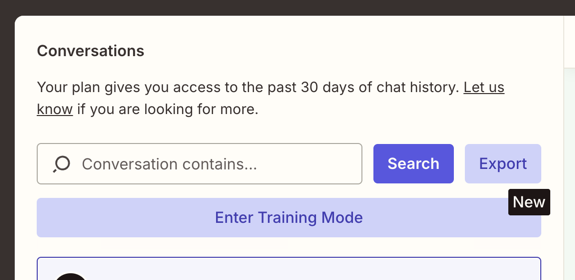
- Click the Conversations tab.
- Click Enter Training Mode.
If this is your first time using Training Mode, an onboarding guide will explain how it works.
Add a training sample
Training samples are examples of chatbot responses that you label as positive (good) or negative (needs improvement). These samples are passed to the AI alongside your directive on every future response, helping the chatbot understand what good and bad responses look like for your use case.
- In Training Mode, open a conversation from the list.
- Select a chatbot message. You can select one or two consecutive chatbot responses to use as a sample.
- Click Use as training example.
- Select a label:
- Positive Example (Reinforce): The response is a good example of how the chatbot should respond.
- Negative Example (Needs Improvement): The response needs improvement.
- In the text field, add an explanation of what the chatbot should have done or did well.
- Click Add training sample.
Zapier saves the sample and applies it to all future chatbot responses.
If your chatbot invented information that does not exist, such as a return policy or feature that is not available, find the response in the conversation history and label it negative with a note like "Do not invent information. If you do not know the answer, direct users to [your support page URL]."
The chatbot will use this as a guardrail going forward.
If your chatbot gave a response that matches the tone, accuracy, and helpfulness you want, find the response in the conversation history and label it positive.
The chatbot then receives that response as a model example for future replies, nudging it toward that style and approach.
Review directive recommendations
After you add training samples, Training Mode analyzes your examples and suggests changes to your chatbot's directive. Each recommendation includes reasoning for the suggested change.
- After adding a sample, review the recommended directive changes displayed below your sample.
- Edit the suggestions if needed.
- Click Accept to apply the changes to your directive, or Skip to keep your current directive.
Accepting a recommendation updates your chatbot's directive immediately. Your training samples still apply regardless of whether you accept the directive recommendations.
 Note
NoteDirective recommendations are optional. Your training samples still improve chatbot responses even if you skip the suggested directive changes.
Delete a training sample
You can remove individual training samples at any time.
- In Training Mode, open the training samples panel.
- Find the sample you want to remove.
- Click Delete.
When to use Training Mode
Training Mode works best for ongoing improvement as your chatbot handles real conversations. Common use cases include:
- Stopping hallucinations: Flag responses where the chatbot invented information and add guidance about what it should do instead.
- Fixing tone or length issues: Label responses that are too long, too casual, or too formal, and describe the ideal tone.
- Reinforcing good responses: Mark great responses as positive examples so the chatbot models future responses after them.
Limitations
- You can save up to 15 training samples per chatbot.
- Training Mode does not make changes to your model. The chatbot passes your samples to the AI at generation time as reference examples.
- You can only select chatbot responses (not user messages) as training samples.
- You can use up to two consecutive chatbot responses per training sample.