Log streams send real-time webhook notifications to your endpoint when events occur in your Zapier account. You can use log streams to track Zap run success and failure rates, monitor configuration changes like new connections or Zap updates, build monitoring dashboards, and set up automated alerting.
To review your account's audit log events in Zapier instead, use the audit log. To learn how the two features differ, go to Understanding the audit log and log streams.
Available on plans:

Free
Professional
Team

Enterprise
Before you begin
- Super admin, or owner role.
- An HTTPS endpoint that can receive POST requests.
Create a log stream
- Click Admin Center in the main left sidebar. You will be redirected to a new page.
- In the Insights section of the Admin Center sidebar, click Log streams. You will be redirected to that page.
- In the top right, click + Add log stream. The Create log stream dialog box will open.
- In the Name field, enter a name for your log stream.
- In the Destination URL field, enter the HTTPS endpoint URL where you want to receive webhook notifications.
- (Optional) In the Secret field, enter a secret of 16 to 255 characters or click the Generate button next to the input box to create a random secret instead..
- Click Next. You will be redirected to a new screen in the dialog box.
-
Select either:
- The checkbox next to each event category to send all events for that category to your destination.
- The right arrow to the right of the event category to expand individual options within the category, then select the checkbox next to each individual event that you want to send to your destination.
- Click Create.
 right arrow to the right of the event category to expand individual options within the category, then select the checkbox next to each individual event that you want to send to your destination.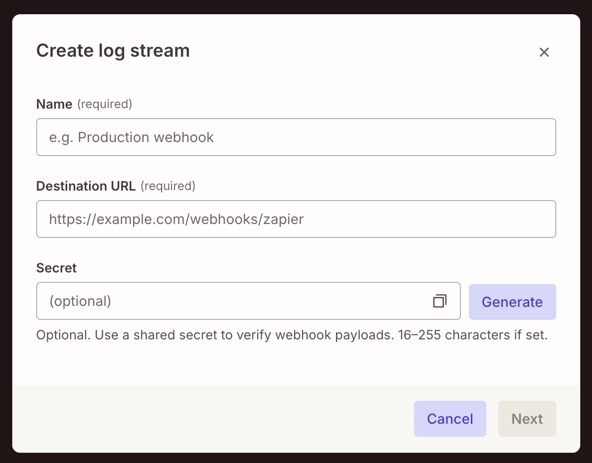
If you add a secret, you can use it to verify webhook signatures.
Your log stream is now active and will start sending webhook notifications when the selected events occur. It appears as a row on the Log streams page.
Create a log stream from a template
Templates help you start a log stream without building it from scratch. Each template opens a draft Zap in the Zap editor. The Zap starts with a Webhooks by Zapier trigger named Receive Log Stream events, which receives the events from your log stream.
To create a log stream from a template:
- Click Admin Center in the main left sidebar. You will be redirected to a new page.
- In the Insights section of the Admin Center sidebar, click Log streams. You will be redirected to that page.
- In the Start with a template section, select a template.
- To the right of the Start with a template section, click Create Zap and log stream. You will be redirected to the Zap editor.
- Finish configuring the steps in the draft Zap.
- Turn on the Zap.
After you finish, the log stream appears as a row on the Log streams page. A log stream that you create from a template is a Zap.
Available event types
Log streams support two categories of events:
- Audit log events: Track configuration changes such as Zaps created, connections updated, variables changed, and account membership updates.
- Zap execution events: Track Zap run outcomes including success, error, and halted statuses.
Each event has an event name and an event key. The event name is the readable name shown in Zapier, such as Zap created. The event key is a short code for the same event, such as zap.created. Zapier includes the event key in the event data, so your endpoint can tell which event it received.
 Note
NoteLog streams only capture events that occur after creation. They cannot capture events that occurred before you created the log stream.
Audit log events
Audit log events are the same events that the audit log records. The audit log article lists each event with its event key and description. To review the list, go to the event types section of Use the audit log to review your account activity.
Zap execution events
Zap execution events report the outcome of a Zap run: success, error, or halted. These events are available only in log streams, not in the audit log.
| Event | Description |
|---|---|
zap_execution.error |
The Zap run failed due to an error. |
zap_execution.halted |
The Zap was automatically halted after repeated errors. |
zap_execution.success |
The Zap run completed with no errors. |
Event payload
When an event occurs, Zapier sends a JSON payload to your log stream's destination URL. The payload structure differs based on the event category.
Audit log events use the same payload that the audit log displays in the Event data section of an event. To review an example payload and a description of each field, go to the review event details section of Use the audit log to review your account activity.
Zap execution event payload
Zap execution events have a different payload. They track Zap run outcomes including success, error, and halted statuses.
    {
  "version": "1.1.0",
  "asset_type": "zap",
  "asset_id": "00000000-0000-c000-8000-000001234567",
  "run_id": "abc-def-ghi-789",
  "status": "success",
  "started_at": "2025-01-15T10:30:00Z",
  "error_message": null,
  "owner": {
    "type": "user",
    "id": "014b82b8-714f-8322-8be5-3a6b9f7297cd",
    "email": "jane.doe@example.com",
    "first_name": "Jane",
    "last_name": "Doe"
  }
}
Payload fields
The following table describes each field in the Zap execution event payload.
| Field | Type | Description |
|---|---|---|
version |
string | Schema version (current: 1.1.0). |
asset_type |
string | Type of asset. Currently always zap. |
asset_id |
string | Unique identifier for the Zap. |
run_id |
string | Unique identifier for the specific Zap run. |
status |
string | Terminal status: success, error, or halted. |
started_at |
string | ISO 8601 timestamp when the Zap run started. |
error_message |
string or null | Error details when the Zap run fails. null for successful runs. |
owner |
object | The user who owns the Zap that ran. |
owner.type |
string | Type of owner. Currently always user. |
owner.id |
string | Unique identifier for the owner. |
owner.email |
string | Email address of the owner. |
owner.first_name |
string | First name of the owner. |
owner.last_name |
string | Last name of the owner. |
Common use cases
- Error alerting: Get notified when Zap runs fail. Track error patterns and identify which Zap workflows need attention.
- Success rate metrics: Build dashboards showing Zap reliability over time. Calculate success rates and measure automation health.
- Automated recovery: Trigger workflows when Zap issues occur. For example, create support tickets when Zap workflows are halted, or start investigation workflows for persistent errors.
Manage log streams
After you create a log stream, it appears in the log streams list. The list displays each log stream's name, destination URL, status, number of events, and creation date.
You can manage your log stream by clicking the settings icon at the right end of the log stream. These options are available:
 settings icon at the right end of the log stream. These options are available:
- Edit: Update the name, destination URL, secret, or event selections.
- Test webhook: Send a webhook to your destination URL to verify it's working.
- Pause: Temporarily stop webhook delivery without deleting the log stream.
- Delete: Permanently remove the log stream.
Verify webhook signatures
When you create a log stream with a secret, Zapier signs each webhook request with an HMAC-SHA256 signature. Verify these signatures to confirm that incoming requests are from Zapier.
Each webhook request includes two headers:
| Header | Description |
|---|---|
X-Zapier-Signature |
HMAC-SHA256 signature, hex-encoded. |
X-Zapier-Timestamp |
Unix timestamp (in seconds) when the signature was generated. |
To verify the signature:
- Extract the signature and timestamp from the request headers.
- Construct the signed message by combining the timestamp and JSON body:
{timestamp}.{request_body}. - Compute the HMAC-SHA256 hash using your secret.
- Compare your computed signature with the
X-Zapier-Signatureheader value using a constant-time comparison function.
import hmac
import hashlib

def verify_webhook_signature(request_body, signature, timestamp, secret):
    message = f"{timestamp}.{request_body}"

    computed_signature = hmac.new(
        key=secret.encode("utf-8"),
        msg=message.encode("utf-8"),
        digestmod=hashlib.sha256
    ).hexdigest()

    return hmac.compare_digest(computed_signature, signature)
const crypto = require('crypto');

function verifyWebhookSignature(body, signature, timestamp, secret) {
  const message = `${timestamp}.${body}`;

  const computedSignature = crypto
    .createHmac('sha256', secret).update(message).digest('hex');

  return crypto.timingSafeEqual(
    Buffer.from(signature),
    Buffer.from(computedSignature));
}
import (
    "crypto/hmac"
    "crypto/sha256"
    "encoding/hex"
    "fmt"
)

func verifyWebhookSignature(body string, signature string, timestamp string, secret string) bool {
    message := fmt.Sprintf("%s.%s", timestamp, body)

    h := hmac.New(sha256.New, []byte(secret))
    h.Write([]byte(message))
    computedSignature := hex.EncodeToString(h.Sum(nil))

    return hmac.Equal([]byte(signature), []byte(computedSignature))
}
Always use constant-time comparison functions (hmac.compare_digest() in Python, crypto.timingSafeEqual() in Node.js, hmac.Equal() in Go) to prevent timing attacks. Do not use standard string comparison operators.
Signature verification tips
- Use the raw request body. Do not parse and re-serialize the JSON. Formatting differences will cause verification to fail.
- UTF-8 encode all strings when computing the signature.
- Store your secret securely. Do not commit it to version control or expose it in client-side code.
Troubleshooting
Webhook signature verification fails
- Verify you're using the raw request body string, not a parsed and re-serialized JSON object.
- Confirm all strings are UTF-8 encoded when computing the signature.
- Check that the timestamp value matches exactly what's in the
X-Zapier-Timestampheader. - Confirm you're using the same secret that was set when you created the log stream.
Webhook not received
- Verify your log stream is in an
activestate, notpaused. - Confirm you're subscribed to the event type you expect (for example,
zap_execution.error). - Verify your destination URL is correct and accessible from the internet.
- Confirm your destination URL uses HTTPS.
Limitations
- Log streams deliver events in real time, starting from when the log stream is created. Historical data is not available.