Zapier users can pause Zap workflows to request that other account members provide data or approve a request via Zapier using the Human in the Loop app. When you receive a request, log into your Zapier account and visit the approval link to complete this process.
How to review a request through Human in the Loop
Zapier users can send notifications via email, Slack, or any other app on Zapier. When you receive a notification, the message will contain a link.
- From the app where you received the notification, click Go to Zap.
-
Log into your Zapier account.
- If you're already logged in, you will be redirected to the Human in the Loop step in the Zap.
- If you do not have an account, you will be redirected to a page to create a free account.
 Note
NoteReviewers must have a Zapier account. If they do not have a Zapier account, they’ll be prompted to create one.
If your organization:
- Already has a Zapier account that uses your organization’s domain (e.g. testcompany.com)
- Has domain capture enabled with the “Only invited users” option selected in their Domain access settings field
Reviewers who try to sign up using an email address from your organization’s domain will not be able to create an account without an invite from an account admin, super admin, or owner.
The left panel will display information about the request:
- When the notification was sent.
- The name of all reviewers.
- The due date for review. The request will time out after this date.
- A message from the requester letting the reviewer know what is needed.
The right panel will display the content to review. To complete the request:
Reviewing Collect data requests
- Review the content and fill out relevant fields.
- Click either: - Skip: no response will be sent. - Submit: your response will be sent to the Zap owner. The Zap owner can review responses in the Zap run. If the Zap owner mapped fields from this action to later steps, the values will appear in those steps when the Zap continues.
 Skip: no response will be sent.
-
Skip: no response will be sent.
-  Submit: your response will be sent to the Zap owner. The Zap owner can review responses in the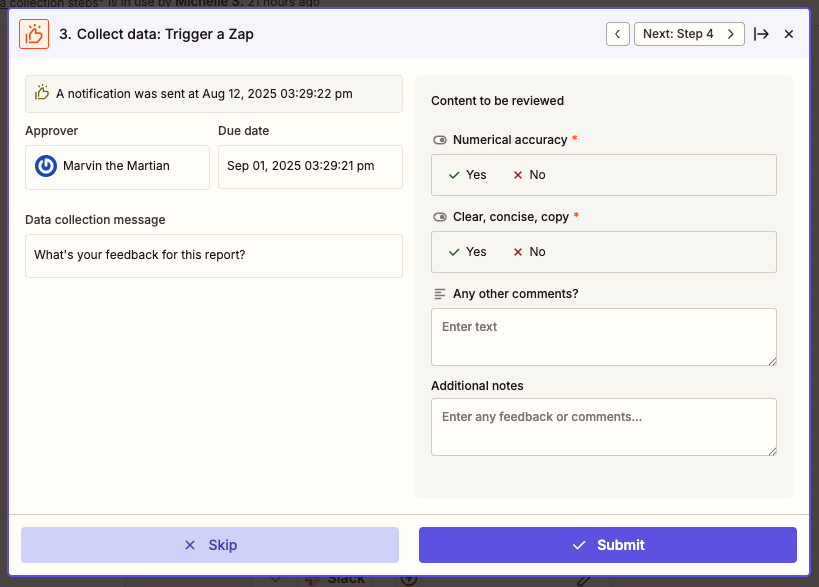
Reviewing Request Approval reviews
- Review the content.
- Reviewers can edit data in any fields in the right panel. - Click Edit to enable editing in fields. - Edit the value in any field. - Click Stop editing to save changes.
- Click either: - {Decline label}: where “{Decline label} is the label you entered in the Decline button label field. No approval will be sent to the Zap. - {Approve label}: where “{Approve label} is the label you entered in the Approve button label field. The approval will be sent to the Zap. The Zap owner can review responses in the Zap run. If fields from the Request Approval action are mapped to later steps, the values will appear in those steps when the Zap continues.
 Edit to enable editing in fields.
- Edit the value in any field.
- Click
Edit to enable editing in fields.
- Edit the value in any field.
- Click 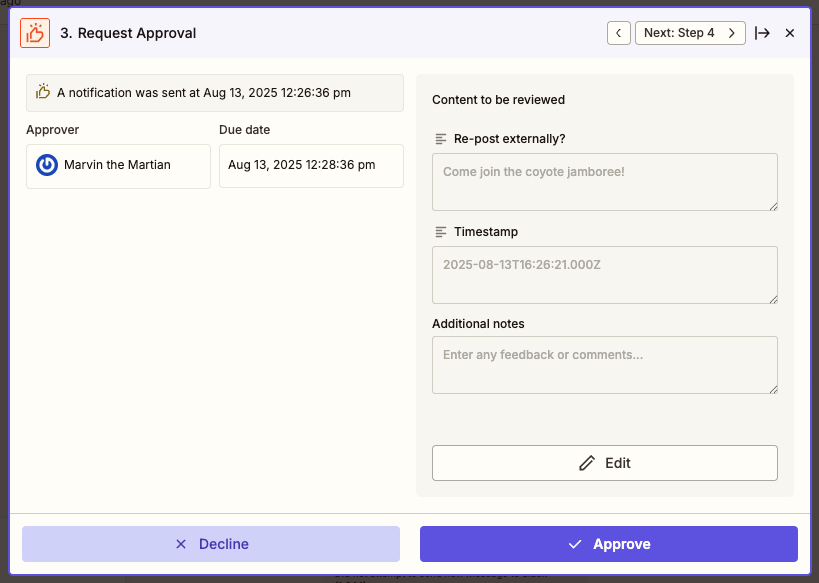
Next steps
Learn about: