Agents can use actions from Zapier's library of 9,000+ apps to automate tasks for you.
 Note
NoteZapier is moving Agents to AI by Zapier. Learn how to migrate from Agents to AI by Zapier.
Create an action
-
From the Zapier Agents home, select your agent.
- Learn how to start a new agent.
- In the section Tools this agent can use, click + Add Tool. A dialog box will open.
- Search for and select the app you want to use.
-
Select an action from the list.
- Click the Find data tab to restrict the list to actions that can search for data.
- Click the Take action tab to restrict the list to actions that can change data.
- The agent will add this action and select the best option for required fields. It'll appear in the list of tools the agent can use.
Editing action settings
The agent will try to set up and fill all required fields and connection for an action. If you want to make changes to any action:
- From the section Tools this agent can use, select an action.
- Select a connection from the dropdown menu, or create a new connection by clicking the Settings icon .
-
Fill out or update any other fields.
- To see optional fields, click Show all options. You can let the agent decide the content of certain fields.
- Click Save.
 .
.Interacting with actions
Once you insert an action into the instructions, it will appear as a text pill in the instructions field. The agent can still use any actions you've added, even if they do not appear in the instructions.
You can move the action to where you want to reference them, providing better context for the agent. You can also:
- Click the pill to change its settings.
- Delete it using
DelorBackspaceon your keyboard. - Click and drag to move it to another part of the field.
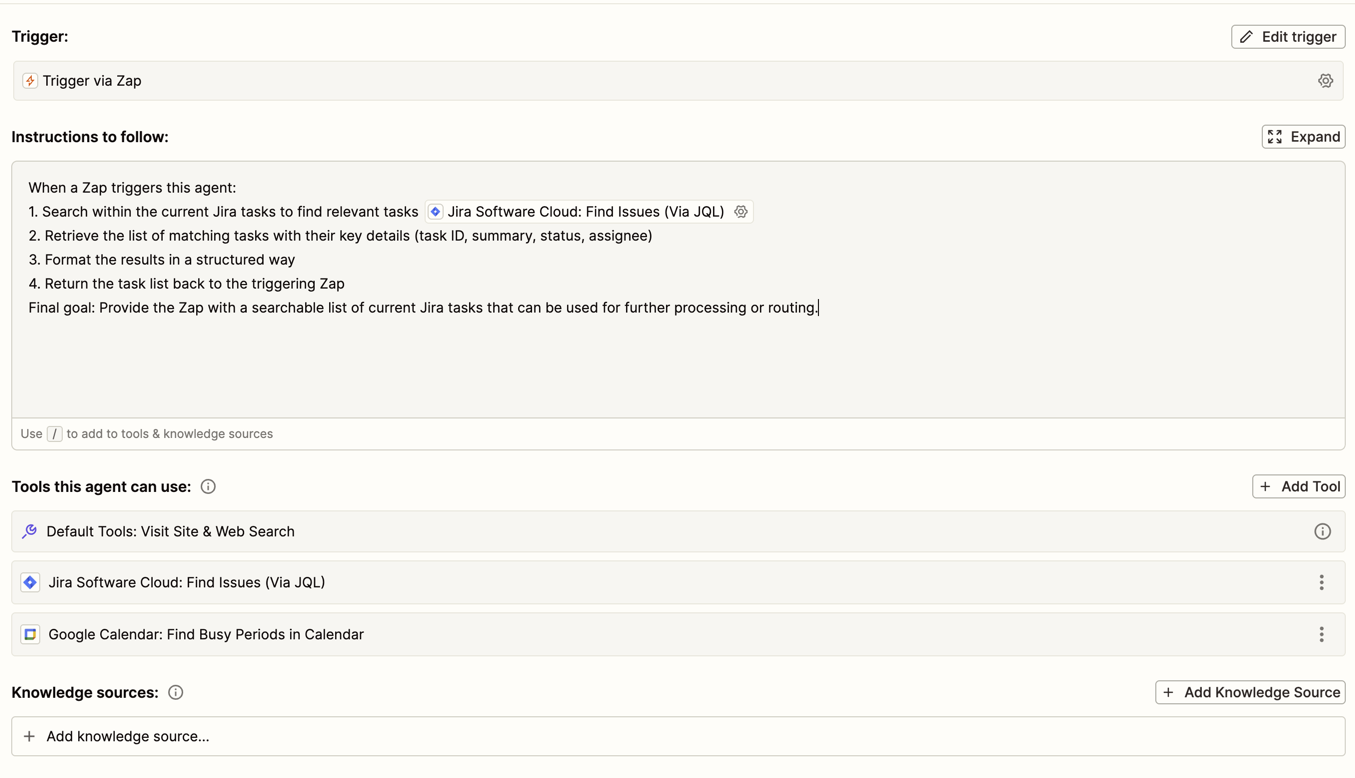
Define how the agent will use action fields
Agents can use fields in each action differently, depending on the field type.
Required fields
You must enter a value or make a selection in a required field. Required fields have the following options:
- Let your agent select a value for this field. The agent will automatically determine the best value to use based on what the task requires.
-
Set a specific value for this field: you manually select a value for the field.
- If you select this option, a new field will appear, where you can enter or select a value. The same value will be used whenever this action is run.
Optional fields
Optional fields have additional usage options beyond those available for required fields.
- Do not include a value for this field: leave the field blank when the action runs.
- Let your agent select a value from one of these choices: Select values from a dropdown menu that you want the agent to choose from.
With Let your agent select a value from one of these choices, the agent can only use one value at a time, even if multiple options are available.
Use actions in conversations
You can use any actions you add while chatting with your agent, independently of the agent's main instructions.
- From the Zapier Agents home, select your agent.
- Click New chat. The chat sidebar will open.
-
In the Chat field, type your message and click the Tools menu to add existing tools or new ones. Press Enter to send the message to the agent.
- You can move away from the chat, and the agent will let you know once the action is completed, or if it needs your input to continue.
 New chat. The chat sidebar will open.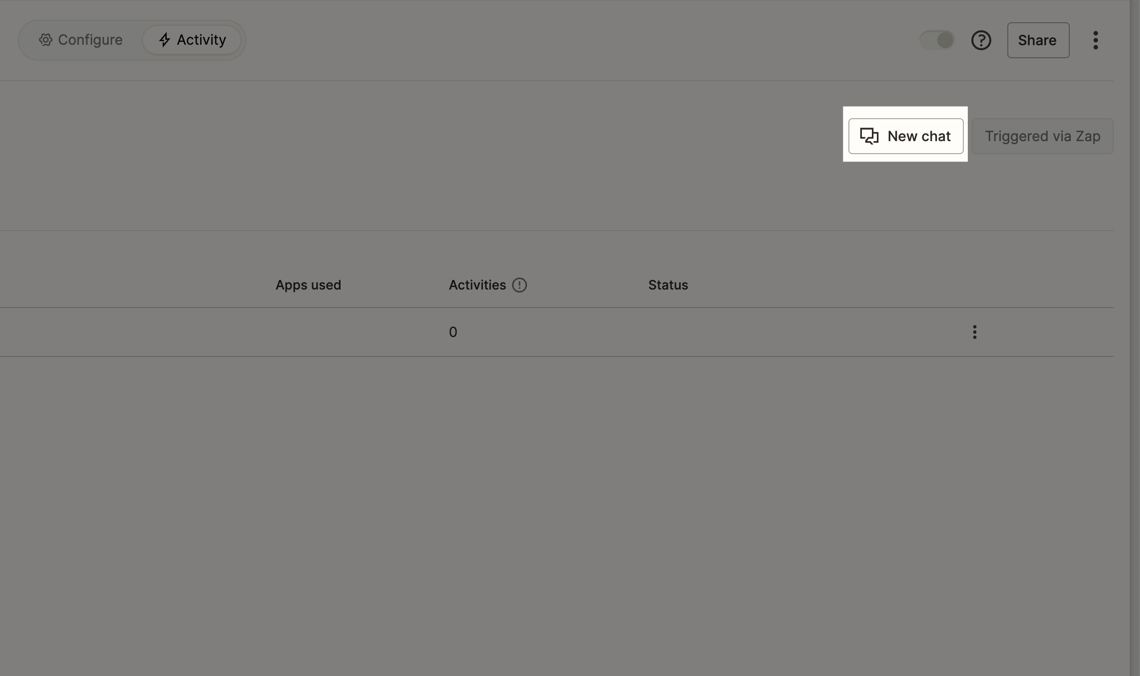
Remove an action
- From the section Tools this agent can use, c lick the menu icon beside the action you want to remove.
- Click Remove from agent. A dialog box will open.
- Click Delete to confirm.
 beside the action you want to remove.
 Remove from agent. A dialog box will open.
How action usage is measured
Every time an action runs, it consumes one activity from your activity limit. You can view all past actions in the All activity page.
Provide feedback and get help
Submit a feature request, provide feedback on existing features, or get help from the Zapier Agents team. You can also discuss Agents with other users on Zapier's Early Access Program Slack.