You can filter most fields in your table to display only records that match a specific rule. Filtering options depend on the type of field you are using.
Available on plans:

Free
Professional
Team
Enterprise
Permissions
Only the owner of a table or users with the "Editor" role can edit and create filters. Learn more about permissions in Zapier Tables.
Filter records
To filter records, you must select a field to filter by, a filter rule, and the value that the filter will evaluate. After you filter, your table will only show records that match your filter value.
- In the toolbar, click the Filter icon .
- Click the dropdown menu and select the field you want to filter by.
- Click the next dropdown menu to select the rule the filter will use to evaluate the field value. The content of this dropdown menu depends on the field type.
- Depending on the rule you select, a text field will appear. Enter a value in the field, or select an option from the dropdown menu.
- Click Apply filters.
 .
. Note
Note- If you add multiple filters, the table will only display records that match all the filters.
- If you create a filter in a view, it will only affect records in that view. Learn more about views in Zapier Tables.
Remove filters
- In the toolbar, click the Filter icon .
- Click the Remove filter icon beside the filter you want to remove.
 beside the filter you want to remove.
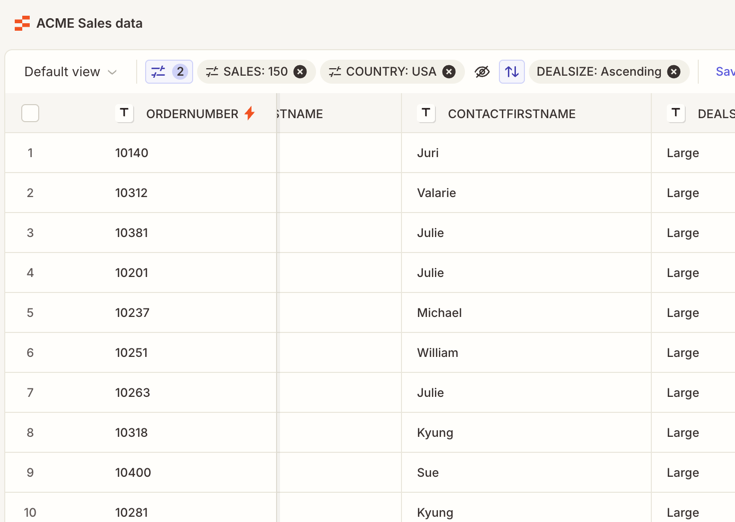
Each active filter also appears as a tag in the toolbar. You can click the x on a tag to remove that filter.
Limitations
You cannot use filters with these field types:
- Dropdown fields that use another table as a source.
- Dropdown fields that accept multiple selection.
- Button fields.
- JSON fields.
- Formula fields.
Filter rules
Each field type offers different filter rules. The section below contains examples of how each rule works. Click the header for each field type to see its rules. In each example, you will see:
- Rule: the filter rule's name.
- Value: the value to be checked against the rule.
- Examples: the content in a cell and what would be filtered and not filtered.
Rules for text-based fields
These rules apply to the following field types:
- Text
- Dropdown
- Phone number
- Link (text)
- Link (link)
- Linked Record
- AI Field
| Rule | Value | Example that would be displayed | Example that would not be displayed |
| Is exactly | Apples | Apples |
|
| Contains (case-sensitive) | Apples and bananas | Apples and bananas | apples and bananas (not uppercase) |
| Contains | Apples and bananas |
|
Strawberries and apples |
| Is one of |
|
|
|
| Is empty | Only accepts True (field is empty) or False (field is not empty) | ||
| Starts with | App |
|
|
Filters for the Dropdown field can only use existing values.
Rules for number-based fields
These rules apply to the following field types:
- Number
- Currency
| Rule | Value | Example that would be displayed | Example that would not be displayed |
| Is exactly | 100 | 100 | 150 |
| Is greater than or equal to | 100 |
|
99 |
| Is greater than | 100 |
|
|
| Is less than or equal to | 200 |
|
205 |
| Is less than | 200 |
|
|
| Is between |
|
|
|
| Is one of |
|
3000 |
|
| Is empty | Only accepts True (field is empty) or False (field is not empty) | ||
Rules for Date fields
| Rule | Value | Example that would be displayed | Example that would not be displayed |
| Is exactly | 12/31/2022 1:00 | 12/31/2022 1:00 |
|
| Is on or after | 12/31/2022 1:00 |
|
12/30/2017 |
| Is after | 12/31/2018 1:00 |
|
12/31/2017 |
| Is empty | Only accepts True (field is empty) or False (field is not empty) | ||
| Is before | 12/31/2022 3:00 |
|
12/31/2022 1:00 |
| Is on or before | 12/31/2022 1:00 |
|
01/01/2023 |
| Is between |
|
|
08/28/2022 |
| Is within | Select an option from the time range dropdown menu | ||
Dynamic date filters
If you select the rule "is within" to filter a Date field, instead of adding a specific date, you will select from a dropdown menu of time ranges, such as "Last 7 days", "This calendar year", or "Next 365 days".
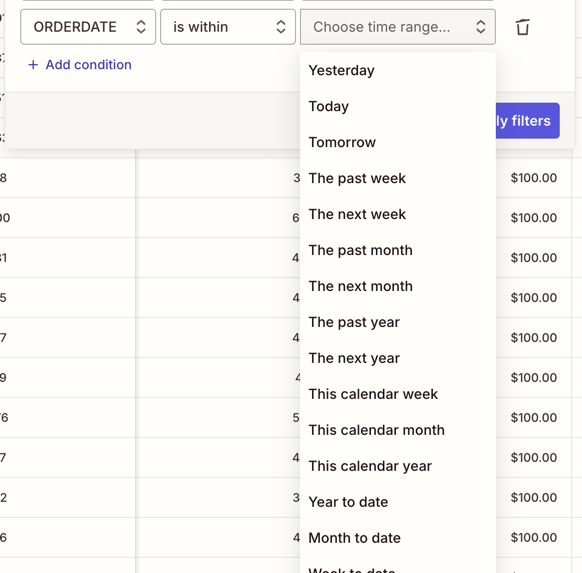
- When you select options related to weekly ranges, such as "This past week" or "This calendar week," the week will always start on a Monday and end on a Sunday.
- For "Last 7 days" and other options related to a number of days, the date range will include the current day.
Rule for the Checkbox field
The Checkbox field only accepts True or False as a filter:
- True: checkbox is selected.
- False: checkbox is not selected.