You can import a Classic Zap into Next Gen Zaps. Zapier creates a copy of the Classic Zap, then you test and publish the copy in the Workflow Manager. Your original Classic Zap stays unchanged and keeps running until you turn it off. By the end of this tutorial, you'll have imported a Classic Zap, published it as a Next Gen Zap, and turned off the original.
Available on plans:

Free

Professional
Team
Enterprise
 Early Access
Next Gen Zaps is in early access by request. Sign up at https://zapier.com/workflow/early-access. If you’re on a Team plan, the request must come from an account owner or admin. If you’re on an Enterprise plan, contact Support for access. This feature has limited availability and is in active development.
Before you begin
- You need edit access to the Classic Zap. You can import Zaps you own and Zaps that are shared with you.
- Familiarity with the Workflow Manager is helpful but not required.
Import your Classic Zap
- In the Zapier left sidebar, click Automations, then select Next Gen Zaps in the second sidebar.
- Click + Create.
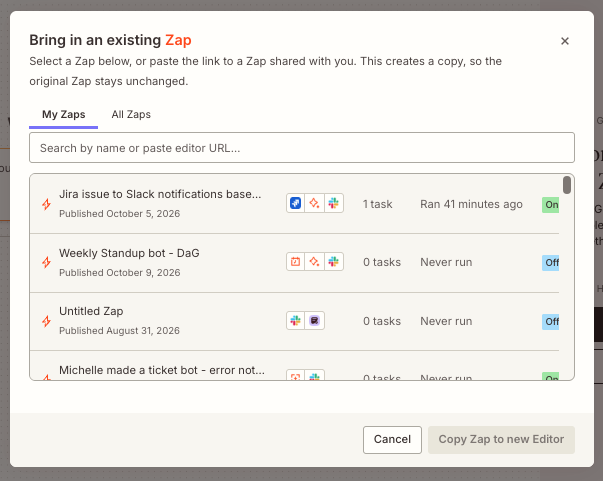
- Click Import a Zap. The Bring in an existing Zap dialog box opens.
-
Find the Zap you want to import:
- The My Zaps tab lists the Zaps you own.
- The All Zaps tab lists every Zap you have access to. A Zap that someone else owns has a Shared tag.
- In the search bar, enter the Zap's name or URL.
-
Select the Zap.
-
Click Copy Zap to new Editor.
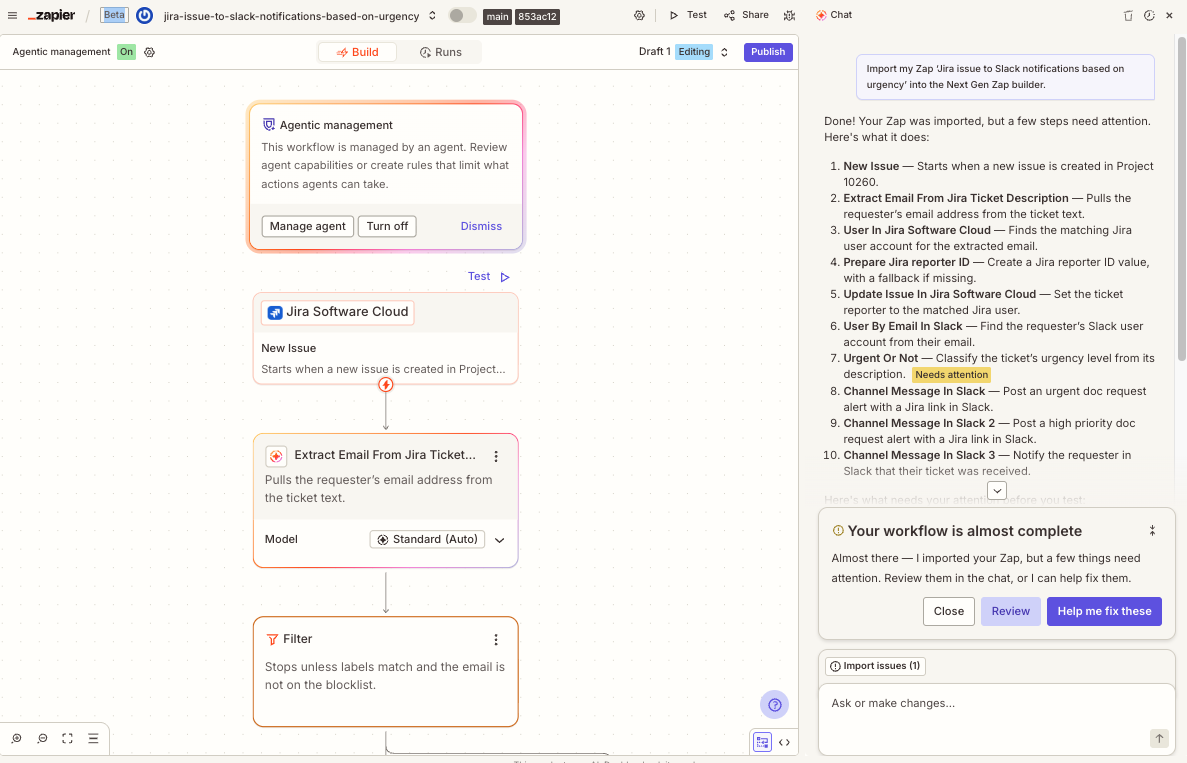
- Zapier converts your Zap and opens the copy as a draft in the Workflow Manager.
- The draft is private, so it appears only in your list of Next Gen Zaps.
-
Review the result in the AI assistant sidebar.
- If any steps need attention, the AI assistant lists them. Review them in the chat, or ask the AI assistant to help fix them.
-
Click Test in the AI assistant sidebar, or click Test in the top menu. In the Test dialog box, click Test.
- A test runs the workflow live. Testing is optional, but it confirms the copy works before you publish it.
-
Turn off your original Classic Zap.
- On your Zaps page, click the toggle next to the Classic Zap to turn it off. Do this before you publish, so the two Zaps do not both run.
-
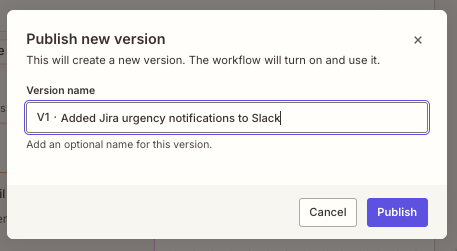
In the top right of the top menu, click Publish. The Publish new version dialog box opens.
- In the Version name field, a suggested name is filled in for you. You can also enter a new name.
-
Click Publish. The workflow turns on and uses the new version.
 in the top menu. In the Test dialog box, click Test.
You can also ask the AI assistant in the Workflow Manager, or your MCP client through Zapier MCP, to import a Classic Zap for you.
Limitations
- If an imported Zap uses an app connection that you do not have access to, Zapier removes that connection from the copy. Choose one of your own connections before you test.
- Next Gen Zaps do not support Global, Zap, or System variables. If your Classic Zap uses Zap variables, the imported copy can fail when it runs.
Next steps
You imported a Classic Zap, published it as a Next Gen Zap, and turned off the original.
- Read Get started with Next Gen Zaps for early access pricing, limitations, and security considerations.
- Read Use the Workflow Manager to build and view your Next Gen Zaps to edit your workflow on the canvas, in code, or with the AI assistant.
- Read Create Next Gen Zap drafts and versions to publish changes and review earlier versions.
- Read Agentic Management in Next Gen Zaps to let an agent fix your workflow when a run fails.