Agentic Management lets an agent watch a Next Gen Zap after you build it. The agent reviews each run, diagnoses failures, and prepares a fix, so a broken workflow does not sit failing until you notice it. You decide how much the agent is allowed to do on its own.
This is different from the other two ways an agent takes part in a Next Gen Zap. Building with the AI assistant happens when you create or change the workflow. An AI by Zapier step runs an agent inside the workflow, every time the workflow runs. Agentic Management does neither: it watches the workflow itself, and acts on runs that already happened.
By the end of this article, you'll understand what the agent watches, what each capability allows, and what changes without your approval.
Available on plans:

Free

Professional
Team
Enterprise
 Early Access
Next Gen Zaps is in early access by request. Sign up at https://zapier.com/workflow/early-access. If you’re on a Team plan, the request must come from an account owner or admin. If you’re on an Enterprise plan, contact Support for access. This feature has limited availability and is in active development.
Where to find it
To open your workflow in the Workflow Manager, click Automations in the Zapier left sidebar, select Next Gen Zaps in the second sidebar, then click the workflow.
In the Workflow Manager, click the Settings button in the far left sidebar, then select Agent behavior. You can also reach the same settings from the Agentically managed card on the canvas by clicking Manage agent.
 in the far left sidebar, then select Agent behavior. You can also reach the same settings from the Agentically managed card on the canvas by clicking Manage agent.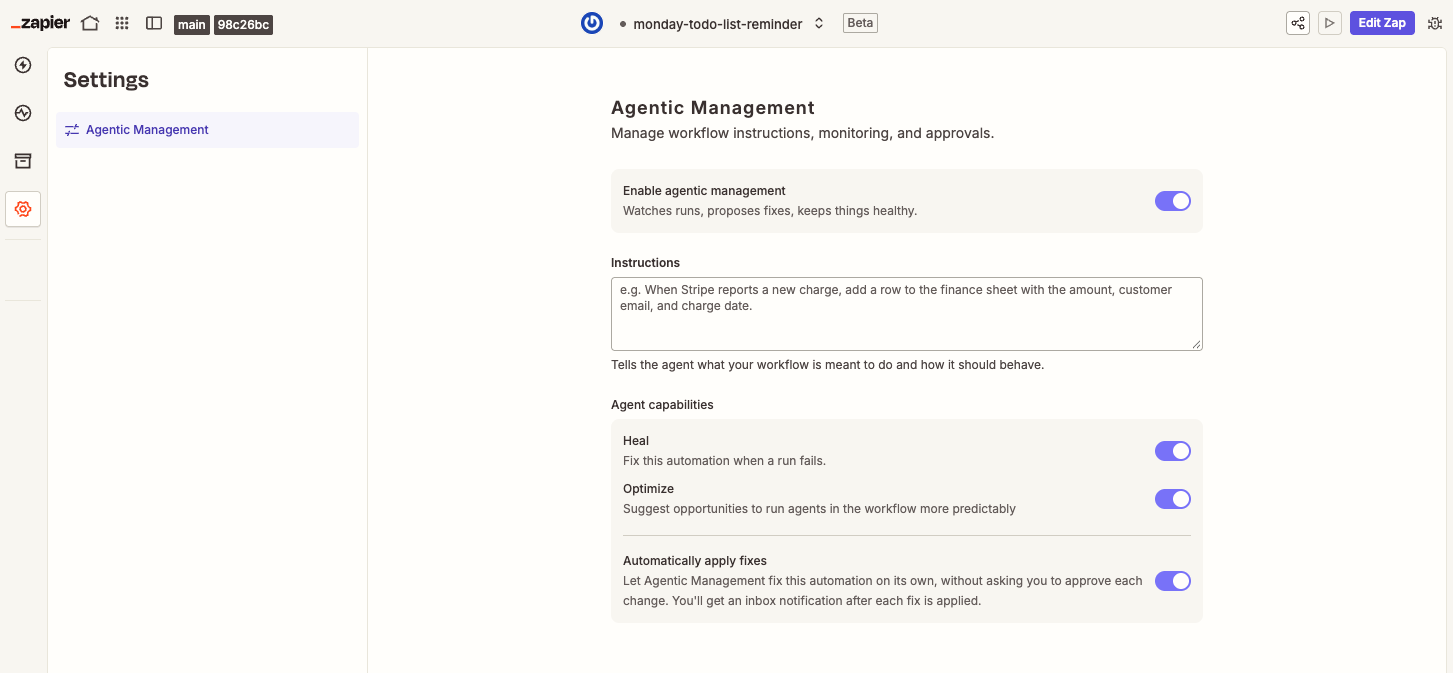
How it works
Agentic Management has three parts: a switch that turns it on, instructions that tell the agent what the workflow is for, and capabilities that set the limits of what the agent may do.
Enable Agentic Management
This toggle switch turns the whole feature on and off for one workflow. Agentic Management and all three agent capabilities are on by default. To check which ones are on for a workflow, open Agent behavior in the Workflow Manager settings. While it is on, the agent watches runs, proposes fixes, and works to keep the workflow healthy. It is turned on if one or more of the agentic behavior settings is on. If you turn it off, it disables all agentic behaviors too.
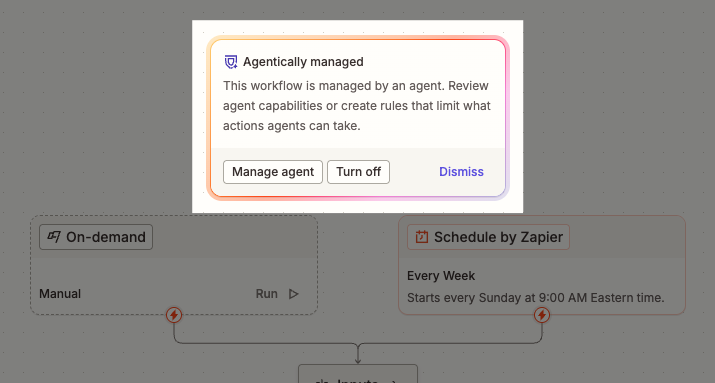
When Agentic Management is on, Agentically managed and its current state appear at the top right of the canvas, and a card on the canvas repeats it. The card explains that an agent manages the workflow, and points you to the capabilities and instructions that limit what the agent can do.
Instructions
The Instructions field holds a plain language description of what the workflow is meant to do. The agent builds these instructions up over time as you work on the workflow with the AI assistant. When the agent applies a fix or suggests a change, it checks the change against the instructions to confirm the change still matches what you want the workflow to do.
You can edit the instructions at any time. Write them the way you would describe the job to a colleague. For example: "When Stripe reports a new charge, add a row to the finance sheet with the amount, customer email, and charge date."
Agent capabilities
There are three agent capabilities that define what the agent is allowed to do.
| Capability | What it does |
|---|---|
| Heal | Fixes the workflow when a run fails. |
| Optimize | Suggests improvements after a successful run, such as running an agent in the workflow more predictably based on the last few runs. |
| Automatically apply fixes | Lets the agent apply a fix on its own when the fix does not change what the workflow can do. |
Heal and Optimize determine how the agent acts. Automatically apply fixes determines whether it waits for you. With it off, the agent prepares a fix and asks you to approve it. With it on, the agent applies the fix and tells you afterwards.
Some fixes always need your approval, even with Automatically apply fixes on. A small code change goes ahead on its own. The agent asks you first when:
- The fix changes what the workflow can do, such as adding a tool call, an action, or a branch.
- The agent has low confidence in the fix.
- The fix changes an asset or an authentication, which Zapier treats as high risk.
Whenever the agent applies a fix, it tests the workflow first, then publishes the change as a new version. You can review what it changed in the version history.
A failed run retries up to five times before the agent starts. Once those retries are exhausted, the workflow goes into error mode, and the agent reads the error and works out a fix.
The agent only acts on a run that reports a problem.
Notifications
During early access, Zapier notifies you by email. You get an email at each stage of the agent's work: when a run fails, when the workflow needs your review, and when a fix is applied.
- When the agent changes the workflow without your approval, the email links to a diff of what changed.
- When the workflow needs you, the email opens the fix in the sidebar, with a summary from the agent and a button to approve it.
When to use it
Agentic Management is useful in these kinds of situations.
| Situation | How Agentic Management helps |
|---|---|
| Something upstream changes, such as a renamed field or an expired connection | Heal diagnoses the failure and repairs the workflow without waiting for you. |
| You do not check the workflow often | Zapier emails you when a run fails, with the fix the agent proposes or already applied. |
| You are still tuning the workflow | Optimize reviews successful runs and suggests improvements you might not go looking for. |
If you would rather approve each change yourself, turn Automatically apply fixes off while you learn what the agent proposes, then turn it back on once you trust the fixes it suggests for that workflow.
 Note
NoteAgentic Management changes a live workflow. Review the security considerations in Get started with Next Gen Zaps before you turn on Automatically apply fixes on a workflow that touches sensitive data.
Next steps
With Agentic Management, you can determine what the agent watches and fixes.
- Read Get started with Next Gen Zaps for the security considerations that apply to the whole product.
- Read Use the Workflow Manager to build and view your Next Gen Zaps for where these controls sit.
- Read Create Next Gen Zap drafts and versions to review what the agent changed.