Drafts let you build and edit your Next Gen Zap in a non-published state. When you publish, Zapier saves a new version, so you can review how the workflow changed over time and start a fresh draft from an earlier version.
By the end of this tutorial, you'll be able to tell which draft or version you are working in, switch between them, and discard a draft you no longer want.
Available on plans:

Free

Professional
Team
Enterprise
 Early Access
Next Gen Zaps is in early access by request. Sign up at https://zapier.com/workflow/early-access. If you’re on a Team plan, the request must come from an account owner or admin. If you’re on an Enterprise plan, contact Support for access. This feature has limited availability and is in active development.
How drafts and versions work
- A draft is an editable copy of the workflow. Everyone with access to the workflow shares the same drafts, so a draft is not private to you.
- A Next Gen Zap can hold more than one draft at a time. This is a change from Classic Zaps, which allow only one draft, so you can keep two sets of changes in progress and publish them separately.
- Your changes save automatically as you work. You can close the Workflow Manager and return to the draft later.
- A version is a published snapshot of the workflow. After Zapier publishes a version, you cannot change or delete it.
- Publishing turns the draft into the new version, so the draft no longer appears in your list of drafts. To make more changes, start a new draft.
- The AI assistant makes its changes in a draft rather than publishing them. When more than one draft is open, it asks which one to use.
Check what you are working in
Drafts and versions live in the Workflow Manager. To open your workflow, click Automations in the Zapier left sidebar, select Next Gen Zaps in the second sidebar, then click the workflow.
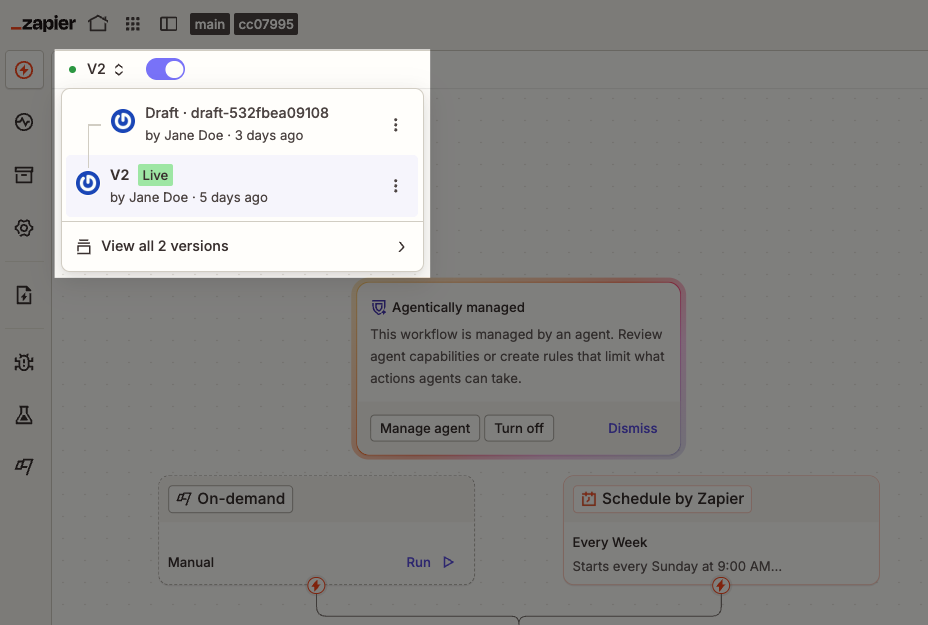
At the top left of the canvas, a dropdown menu reports what is currently open and any previous drafts and versions. A toggle switch next to the dropdown menu turns the workflow on and off.
Publish a draft
Publishing a draft creates a new version. The workflow turns on and starts using that version.
- Open the draft you want to publish.
- In the top right of the top menu, click Publish. A dialog box will appear.
- In the Version name field, a suggested name is filled in for you. You can also enter a new name manually.
- Click Publish. The dialog box will close.
If your draft started from an older version, the dialog box tells you that publishing replaces the newer version. A run that already started stays on the version it started on, so publishing does not interrupt work in progress.
 Note
NoteZapier checks the workflow before it publishes. If the workflow's code is broken or has no entry point, the publish stops, nothing changes, and your draft stays open. Drafts accept incomplete work, so the check happens only when you publish.
Test a draft before you publish
You can run a draft live to test it before publishing it.
- Open the draft you want to test.
- In the top right of the top menu, click the Run button .
 .
.The run uses the draft, not the live version, and it appears in the runs list with a draft label.
Switch between drafts and versions
- At the top left of the canvas, click the version or draft dropdown menu. It lists your current drafts and the live version, each with its author and when they last changed it.
- Select the draft or version you want to open.
Rename, branch from, or discard a draft
- At the top left of the canvas, click the version or draft dropdown menu.
- Next to the draft, click the menu button .
-
Select an option:
- Rename to change the name.
- Edit from this draft if you're selecting a draft to make changes to or Edit from this version if you're selecting a version to create a new draft to make changes to.
- Discard to delete the draft.
 .
. Rename to change the name.
 Edit from this draft if you're selecting a draft to make changes to or Edit from this version if you're selecting a version to create a new draft to make changes to.
 Discard to delete the draft.
Discarding a draft is permanent. It makes no change to the published version of your workflow.
Review past versions
- At the top left of the canvas, click the version or draft dropdown menu.
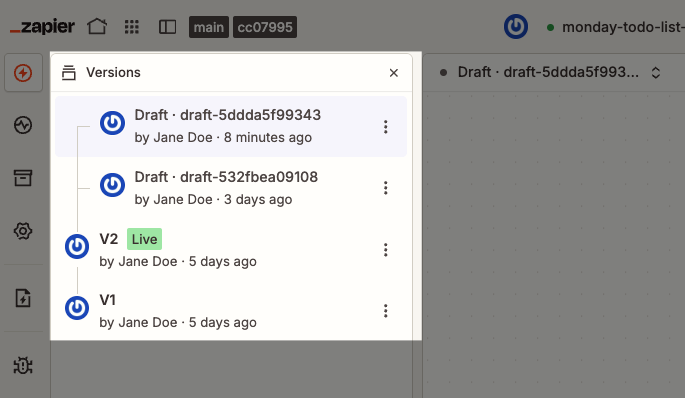
- At the bottom of the dropdown menu, click View all versions. The Versions sidebar will open.
- Select a version to display it on the canvas.
The sidebar lists every version of the workflow, newest first, with the name of the person who published it and when. The current version carries a Live label. Comparing two versions side by side is not available.
Roll back to an earlier version
Version history only grows, so rolling back does not move the Live label back to an older version. Instead, you start a draft from the older version and publish it as a new version.
- At the top left of the canvas, click the version or draft dropdown menu.
- Next to the version you want to return to, click the menu button .
- Select Edit from this version. Zapier creates a draft from that version.
- Publish the draft. The workflow returns to that state as the newest version.
Limitations
- Each user can make up to 60 test runs an hour.
-
With a draft open, a direct publish from the Zapier SDK or CLI is refused.
- Zapier names the draft in the way, and you can publish it, discard it, or override the check.
- A draft you never saved, and that still starts from the current version, does not block a publish.
- Over MCP, publishing always goes through a draft.
Next steps
You can now tell drafts and versions apart in a Next Gen Zap, and move between them.
- Read Get started with Next Gen Zaps for early access pricing, limitations, and security considerations.
- Read Use the Workflow Manager to build and view your Next Gen Zaps for the rest of the canvas controls.
- Read Agentic Management in Next Gen Zaps to let an agent monitor a workflow and fix it when a run fails.