You can add tools to your AI by Zapier step to allow it to use other apps to complete your prompt. When you add tools, AI by Zapier uses multiple tools to gather information and produce a result, rather than just generating a completion.
Available on plans:

Free

Professional
Team
Enterprise
 Note
NoteMigrating from Zapier Agents? Adding tools to AI by Zapier creates agentic workflows, the same capability that previously required standalone Agents. Your agent's tool calling, AI reasoning, and autonomous task execution now run inside a single AI by Zapier step. Learn about migrating from Agents to AI by Zapier.
Before you begin
- You need a Zap with an AI by Zapier step. Learn how to create an AI by Zapier step.
1. Open your AI by Zapier step
- Go to your Zap workflows dashboard.
- Click the Zap that contains your AI by Zapier step to open it in the editor.
- Click your AI by Zapier step. The right sidebar will open to the Setup tab.
2. Select a model tier
The model tier determines what models you can use, and how many tasks your step uses per run. It also determines whether your step can use tools and knowledge sources. Only Advanced and Premium models can use these features.
- Below the Prompt field, click the model dropdown.
-
Select a model tier:
- Advanced (3x tasks): Stronger reasoning for complex prompts.
- Premium (5x tasks): Complex analysis and multi-step reasoning. This is the default for new steps.
- Bring Your Own Key (1x tasks): Connect your own AI provider using your own API key. This is the most cost-effective option for tool-heavy workflows. Tool calls and knowledge sources are only available when you connect an Advanced or Premium model. Check which tier a model belongs to.
- Expand the tier to select a specific model, or choose Auto to use the default model within that tier.
On a Free plan, the model tier defaults to Standard, and the Advanced and Premium tiers appear locked in the model picker. To unlock these tiers, upgrade your Zapier plan.
For a full list of available models by tier, check AI by Zapier model tier pricing. If the model you want is not listed, select Bring Your Own Key to connect your own AI provider account.
3. Add tools to your step
Under Settings, expand the Tools and Knowledge section to add tools your AI by Zapier step can use. AI by Zapier only uses the tools it needs to complete your prompt.
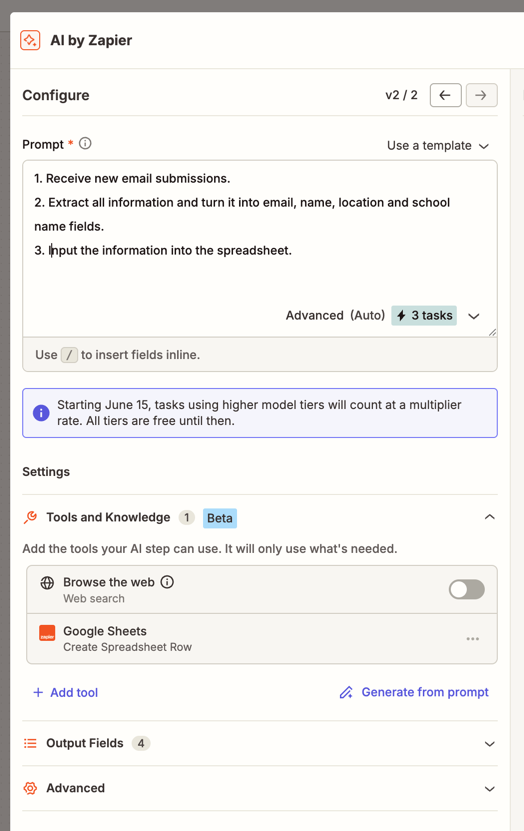
Tools are optional. If you do not add any tools, AI by Zapier runs as a prompt-only step. Advanced and Premium tiers still use tasks at their tier rate per run, even without tools.
Require approval for a tool
When you add or edit a tool, toggle on Require approval before running to pause the run and ask for your approval before AI by Zapier uses that tool. This toggle is off by default, so the tool runs without interruption unless you turn it on.
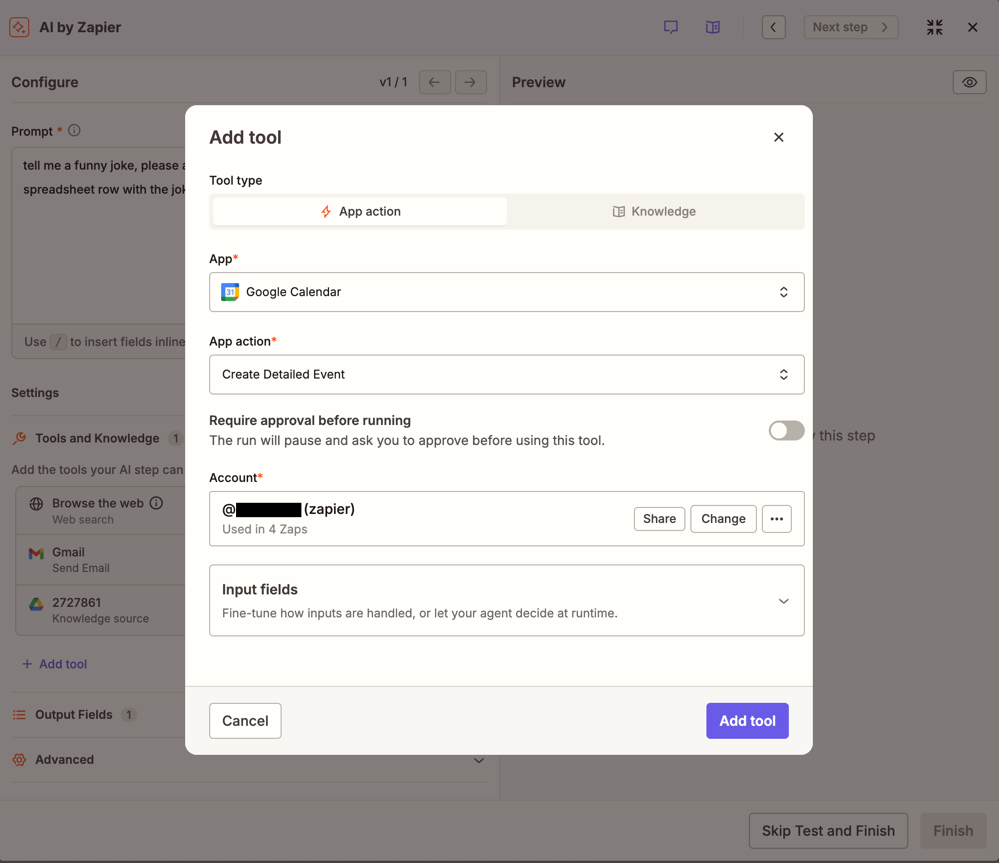
Turn on Require approval before running for sensitive actions, such as tools that create, update, or delete data. Leave it off for low-risk actions, such as reads, so your Zap runs without unnecessary pauses.
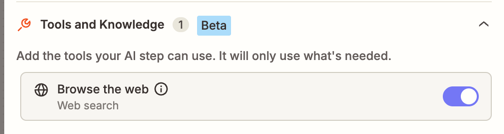
Toggle on Browse the web to let AI by Zapier search the web and visit sites while completing your prompt.
- In the Tools and Knowledge section, click + Add tool. The Add tool dialog will open.
-
Under Tool type, select the type of tool you want to add:
- App action: Use any Zapier app and action as a tool, such as looking up a record in your CRM, sending a Slack message, or adding a row to a spreadsheet.
- Knowledge: Connect a knowledge source so AI by Zapier can retrieve information from your documents or data. Learn about available knowledge sources.
-
If you selected App action:
- In the App field, select the app you want to use.
- In the App action field, select the action you want AI by Zapier to perform.
- In the Account field, select the connected account to use.
-
Configure the input fields for your tool. For each field, you can:
- Set specific field: Enter a static value or map data from a previous Zap step.
- Let agent choose from list: AI by Zapier chooses from the available options for that field.
- Agent determines field: AI by Zapier determines the appropriate value at runtime based on your prompt.
- Exclude field: Skip optional fields you do not need.
- Click Add tool. The tool will appear in your Tools list.
- Repeat to add more tools, then continue to your prompt.
Adding a tool lets AI by Zapier decide when and how many times to call each tool based on your prompt. AI by Zapier will determine this when the step runs.
4. Write your prompt
Your prompt tells AI by Zapier what to accomplish. For guidance on writing prompts, go to Use a custom prompt.
When you add tools to your step, AI by Zapier uses your prompt to decide which tools to call and how to use them. Be specific about your goal and the expected outcome.
If you turn on Require approval before running for a tool, AI by Zapier asks for your approval before it uses that tool, regardless of how the prompt is worded. Set this for each tool before you finish your step.
- In the Prompt field, enter your instructions.
- (Optional) Click Add input field to pass data from previous Zap steps into your prompt.
- Review the suggested Output fields and adjust them to match what you need from this step.
5. Preview and test
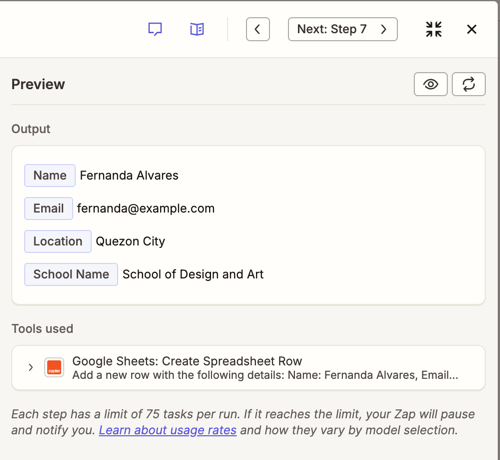
- Click Preview to run a test of your prompt and tool configuration. The preview panel will open on the right.
-
Review the results:
- Output: The structured data your step will return, based on your output fields. This is what you can map to later steps in your Zap.
- Tools used: Each tool AI by Zapier called during the preview run, what it did, and whether it succeeded. Use this to verify AI by Zapier is using the right tools and producing the expected results.
- If you make changes to the prompt, click the refresh button in the preview panel to regenerate it.
- Once you're done, click Finish and continue building your Zap.
The step will display the maximum number of tasks this step could use per run. By default, this limit is 75 tasks, and you can raise it up to 500. If the step reaches its task limit during a live run, your Zap will pause for feedback so you can decide whether to continue or stop. Learn more about task limits for AI by Zapier steps.
Pause for feedback
During a live Zap run, your AI by Zapier step pauses and asks for your input when:
- A tool with Require approval before running is about to run: If you turned on this setting for a tool, AI by Zapier pauses before that tool runs and waits for your approval, regardless of how specific your prompt is. Tools without this setting run without interruption.
- More information is needed: AI by Zapier cannot determine how to continue based on your prompt and the available data.
- The task limit is reached: The step hit the maximum number of tasks allowed per run.
This setting is off by default for new tools, so your step does not pause for approval unless you turn on Require approval before running for that tool. Turn it on for sensitive tools, such as those that create, update, or delete data, if you want to review them before they run.
This pause uses the same Human-in-the-Loop mechanism as the rest of Zapier. When a pause occurs:
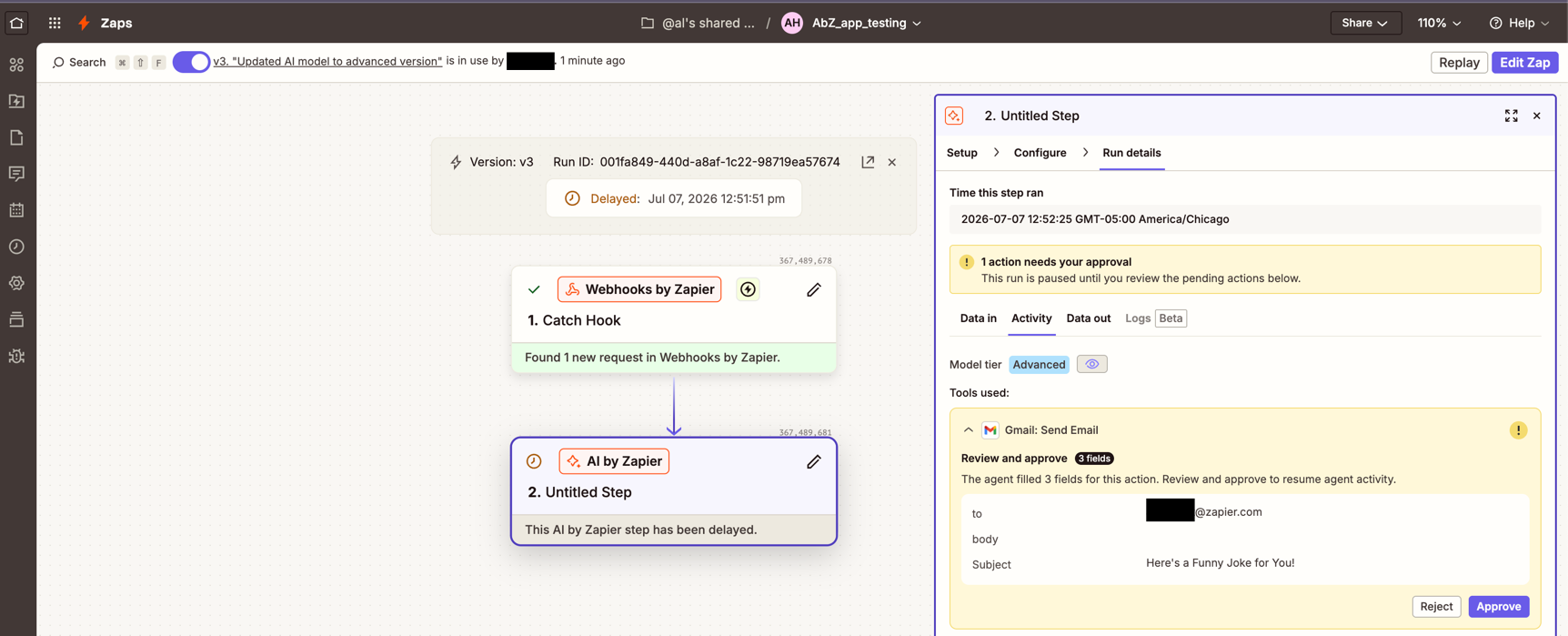
- Your AI by Zapier step shows as Delayed on the Zap canvas.
- Your Zap run shows 1 action needs your approval under the Activity tab.
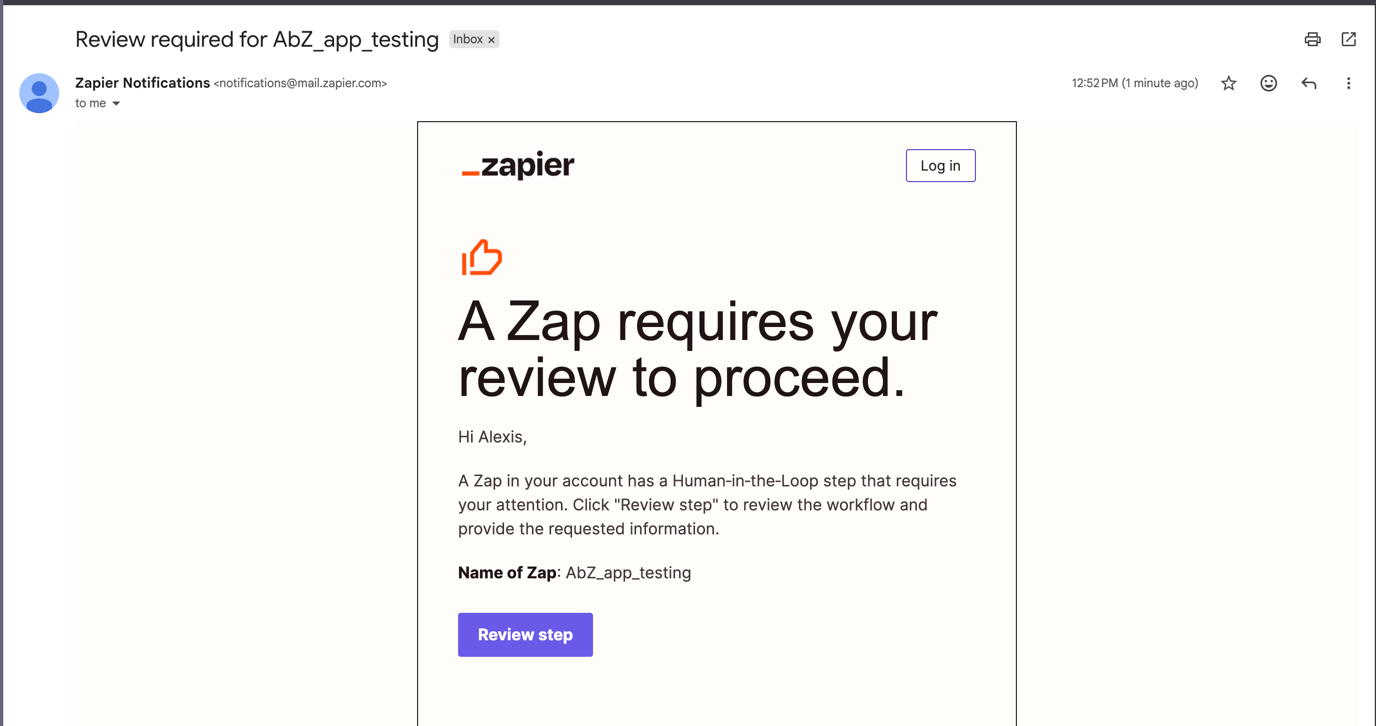
- You receive an email notification with a link to review the step.
Review a paused tool call
When your AI by Zapier step pauses, you need to approve or reject the action to continue the Zap. To review your Zap step:
- Click Review step in the notification email, or visit your Zap history page and open the paused run.
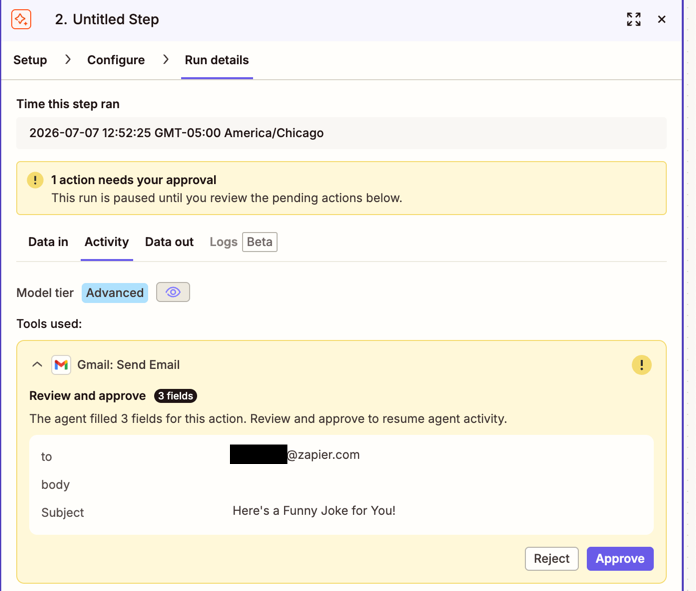
- Under your AI by Zapier step, select the Activity tab.
- Under Tools used, review the Review and approve prompt for the pending tool, which shows how many fields AI by Zapier filled in for that action. Click the tool name to expand it and see the full field values.
- Choose an action:
- Approve: Confirm the fields and let AI by Zapier continue the run.
- Reject: Stop the run.
Review tool activity after a run
After your Zap runs, you can review which tools AI by Zapier used and their actions.
- Go to your Zap history page.
- Locate the specific run and click your AI by Zapier step.
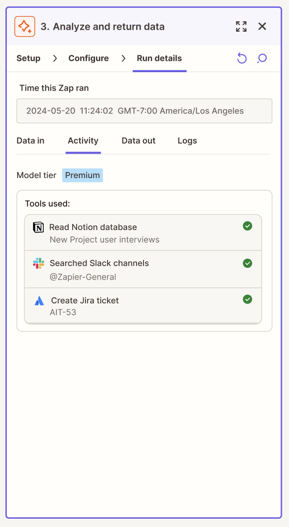
- Under Run details, select the Activity tab.
The tab displays:
- Model tier: The model tier used for that run (Standard, Advanced, Premium, or your own AI account).
- Tools used: Each tool AI by Zapier called, what it did, and whether it succeeded.
Use this tab to troubleshoot unexpected results or verify that AI by Zapier is calling the right tools with the right data.
Limitations
- Tool usage is dynamic. The number of tasks used appears in your Zap history after each run.
- AI by Zapier cannot be used as a tool within another AI by Zapier step.
Next steps
You've configured tools for your AI by Zapier step. Now you can test, monitor, and expand your automation.
- Manage your Zap history: Monitor your Zap runs and review tool call details.
- AI by Zapier guide: Explore use cases and examples for building with AI by Zapier.