Not all activities are triggering my Zap
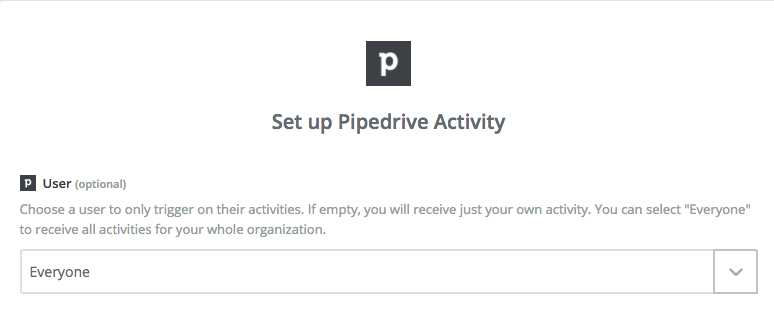
The New Activity trigger defaults to only activities created by the user whose account is connected to Zapier. To trigger on activities from multiple users, select Everyone from the User dropdown menu:
Old deals are triggering my Zap
 Note
NoteThis issue applies to deprecated V1 Pipedrive triggers. The current New Deal and Updated Deal Stage triggers use instant webhooks and are not affected. Learn more about migrating to the latest Pipedrive triggers.
The deprecated "New Deal" and "New Deal in Stage" polling triggers can return deals that are old or have been in the stage for a while but were recently updated. This happens because when the Zap is turned on, it only gets the 100 most recently updated deals. If a deal is updated that is not one of the "original 100", the Zap thinks it's new and triggers.
To work around this, create a filter in Pipedrive that takes into account the date the deal was created. Then, in your trigger setup, select that filter from the Filter field:
My note is not formatted correctly
The Note Content field accepts HTML for formatting. If you want line breaks, bold, or italic text, you can add HTML tags.
For example, entering this:
    <b>This is bold textb>
<br>
<br>
<em>This text is italicsem>
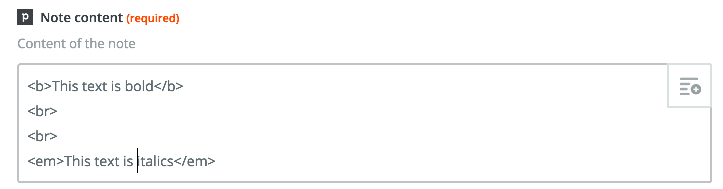
Results in this:

Not all phone numbers are showing up
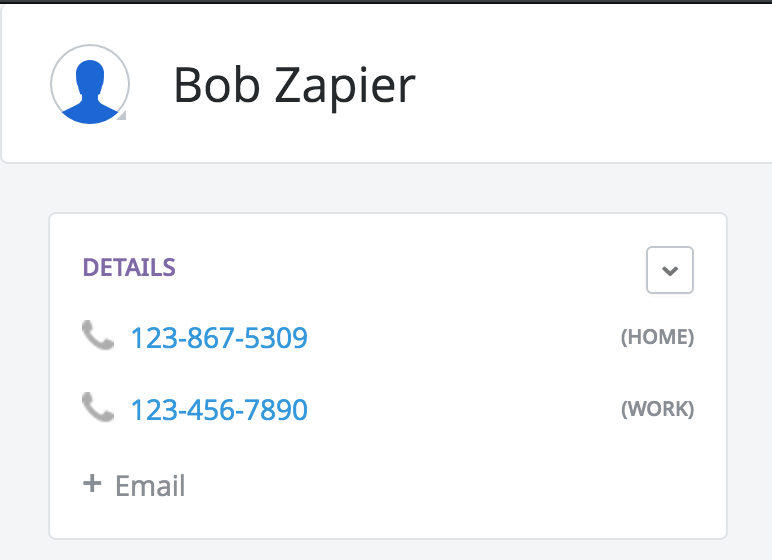
Pipedrive allows you to add multiple numbers when creating a new person (for example, "work," "mobile," and "home"):
However, Zapier can only pull the first number entered in the list (the primary phone number):
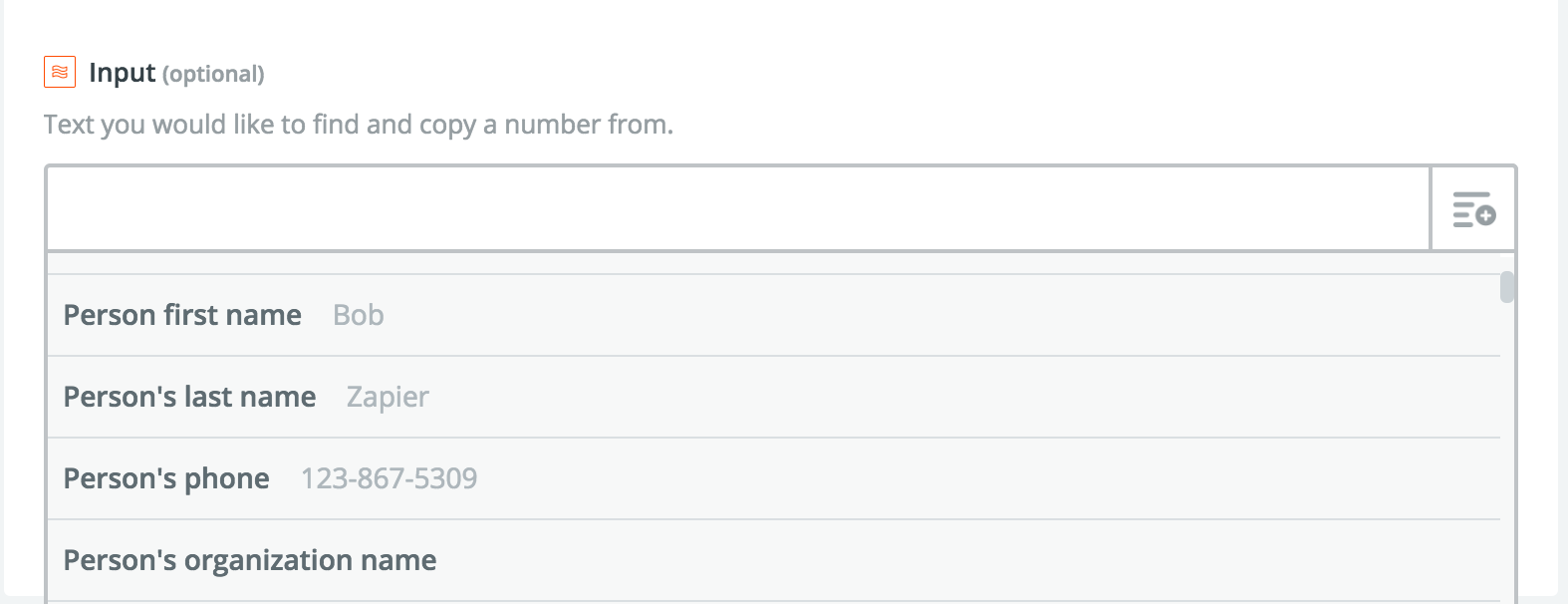
To work around this, add the phone number to a note or another field that Zapier can pull.
Custom currency field data does not appear in Pipedrive
This happens when the amount field is filled out but the currency field is left empty, or vice versa. Pipedrive requires both fields to be populated for the data to display.
To fix this, in your Pipedrive action step:
- Enter the numeric value in the amount field (for example,
100.00). - Enter the three-letter currency code in the currency field (for example,
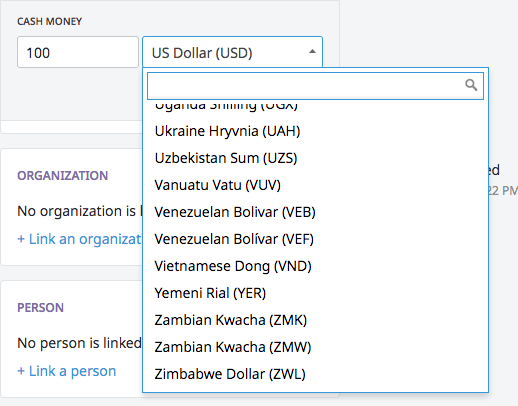
USD,EUR, orVUV). You can find supported currency codes in your Pipedrive currency settings.
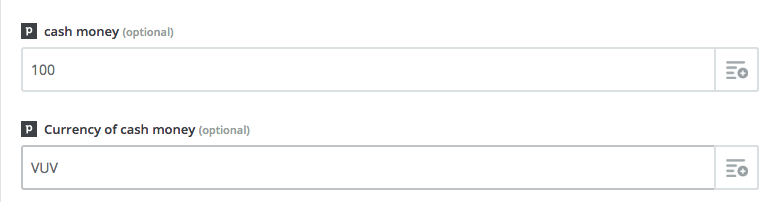
If you leave the currency field blank, it defaults to your Pipedrive account's default currency setting.
I want to trigger off of custom events
The "Matching Filter" triggers give you more flexibility for choosing what events trigger your Zap. These filters are defined in the Pipedrive app and can be configured in a variety of ways. Learn more about filtering in Pipedrive.
How do I get the owner's name and email from a deal?
When you use the Find Deals search, the deal data includes an Owner field with an owner ID. This owner is a Pipedrive User (a team member), not a Person (a contact).
Users are members of your Pipedrive team (employees or sales reps who use Pipedrive). Persons are contacts or leads (customers or prospects stored in your Pipedrive account).
To retrieve the owner's name and email address:
- Use the Find Deals search to find your deal.
- Add a Get User search step after your Find Deals step.
- Map the Owner ID field from the Find Deals step to the Get User search.
- The Get User search will return the owner's name, email address, and other user details.
Still need help?
If these steps did not fix the issue, you have a few other options:
- Contact Zapier Support. The Support team can investigate your account to find solutions.
- Ask in the Zapier Community. Get advice from experienced Zapier users.
- Learn more about how to get help and support with Zapier.