You can manually edit a step in a Next Gen Zap yourself, without using AI. In a draft, you open the step and make your change. Zapier writes your change into the workflow's code. By the end of this tutorial, you'll have edited an action step, an AI step, or a code step in a draft.
Available on plans:

Free

Professional
Team
Enterprise
 Early Access
Next Gen Zaps is in early access by request. Sign up at https://zapier.com/workflow/early-access. If you’re on a Team plan, the request must come from an account owner or admin. If you’re on an Enterprise plan, contact Support for access. This feature has limited availability and is in active development.
What you can edit
You can edit four types of step by hand. To change any other step, describe the change to Zapier, or edit the step in the code editor.
| Step | What you can change |
|---|---|
| Trigger step | The app, the event, the connected account, and the input fields |
| Action step | The event, the connected account, and the input fields |
| AI step | The prompt |
| Code step | The step's code |
The tag at the top of each step on the canvas tells you its type:
-
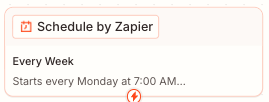
The trigger step is the first step in the workflow. Its tag names the trigger app, such as Schedule by Zapier.
-
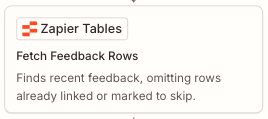
An action step has the app's name and icon, such as Slack or Zapier Tables.
-
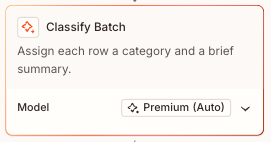
An AI step has a Model row at the bottom that names its model, such as Premium (Auto).
-
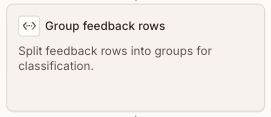
A code step has a code icon, two angle brackets, before the step's name.
- A step that calls an AI model from its code is a code step, not an AI step.
-
An API call step has the tag API call, or the app's name followed by API call, such as Slack API call.
- You cannot edit an API call step by hand.
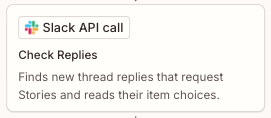
To edit the trigger step, read Choose how a Next Gen Zap starts.
Before you begin
- You must be able to edit the workflow. Only the workflow's owner, a super admin, or the account owner can edit a Next Gen Zap.
- You need a Next Gen Zap. To build one, read Get started with Next Gen Zaps.
Edit an action step
You can edit a step in a draft. A published version is read-only.
- In the Zapier left sidebar, click Automations, then select Next Gen Zaps in the second sidebar.
- Select your workflow. It opens in the Workflow Manager.
- If a published version is open, click Edit Zap on the right of the bar above the canvas. A draft opens.
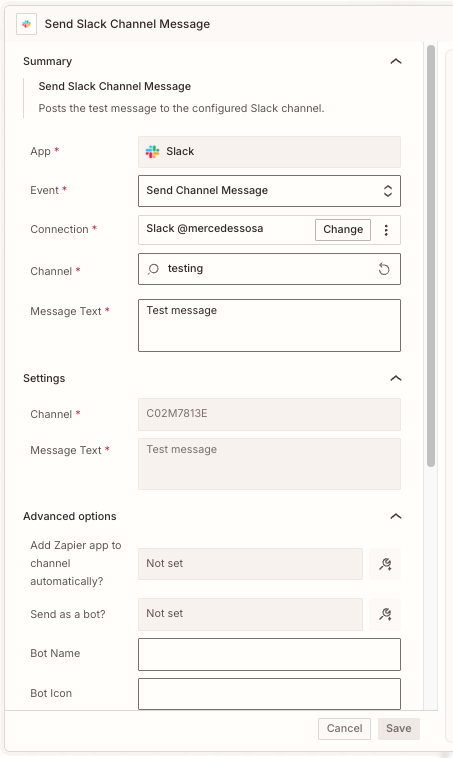
- On the canvas, select the action step you want to edit. A preview of the step opens, with the Overview and Data tabs.
- At the bottom of the preview, click Advanced settings. The step details panel opens.
-
To change the event, click the Event dropdown menu, then select an event.
- The list contains only events of the same type as the current event. For example, a search step lists only search events.
- A new event can need different fields. Click Save, then select the step again and click Advanced settings to fill in the new event's fields.
- To change the connected account, click Change in the Connection field. Select an existing account, or click + Connect a new account to connect a new app account.
-
Enter values for the required fields under the event.
- The Settings section below lists the values that are saved now. You cannot edit them there.
- To change an optional field, click Advanced options to expand the section, then enter a value.
-
Click Save. The panel closes, and Zapier writes your change into the workflow's code.
- To discard your changes, click Cancel instead.
 Note
Zapier saves a new connected account as soon as you choose it. You do not need to click Save, and Cancel does not undo it.
Some fields mix text with values from the workflow's code, such as data from an earlier step. In these fields, each value appears in a small box that shows its name in the code, such as outline. You can edit the text around the boxes, but you cannot add, move, or remove a value by hand.
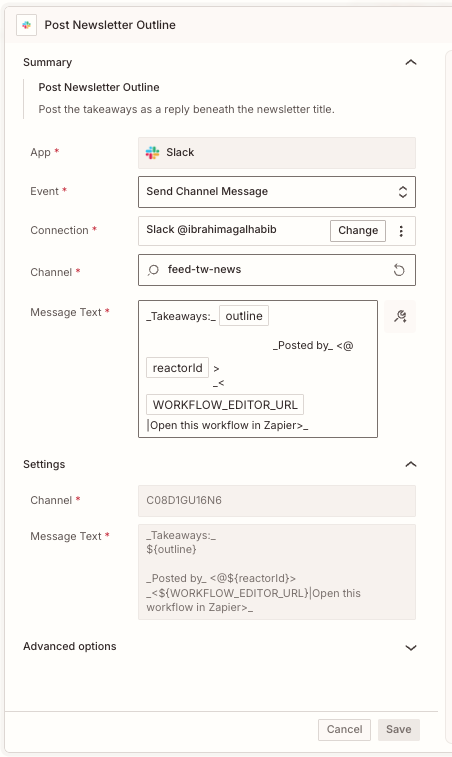
To undo your change to one field, press Esc while the field is selected.
Edit an AI step
- In the Zapier left sidebar, click Automations, then select Next Gen Zaps in the second sidebar.
- Select your workflow. It opens in the Workflow Manager.
- If a published version is open, click Edit Zap on the right of the bar above the canvas. A draft opens.
- On the canvas, select the AI step. The step details panel opens.
- In the Settings section, click the Prompt field.
- Enter a new prompt.
-
Click Save. The panel closes, and Zapier writes your change into the workflow's code.
- To discard your changes, click Cancel instead.
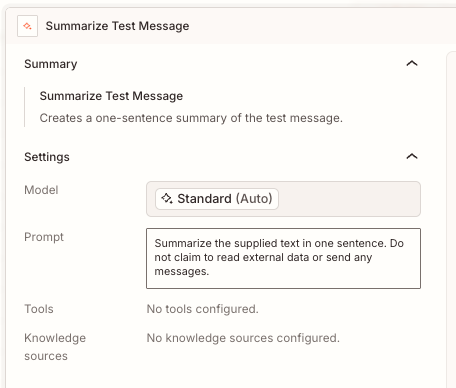
The panel also lists the step's model, tools, and knowledge sources, but you cannot edit them manually. To change them, describe the change to Zapier, or edit the step in the code editor.
Edit a code step
- In the Zapier left sidebar, click Automations, then select Next Gen Zaps in the second sidebar.
- Select your workflow. It opens in the Workflow Manager.
- If a published version is open, click Edit Zap on the right of the bar above the canvas. A draft opens.
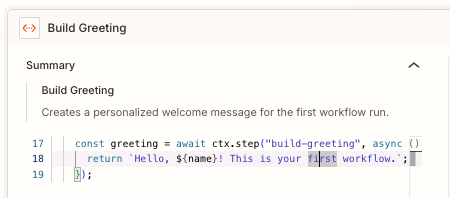
- On the canvas, select the code step. A preview of the step opens, with its code on the Overview tab.
- At the bottom of the preview, click Advanced settings. The step details panel opens, with the step's code on the left.
- Click a section of the code, then make your change. Zapier saves your change to the draft as you type, so there is no Save button.
Change a field you cannot edit
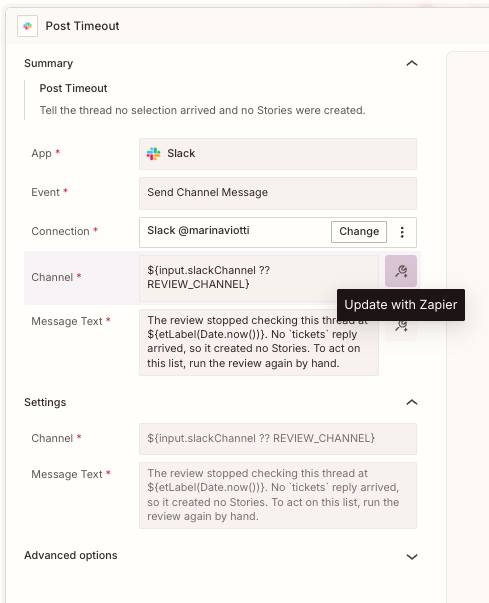
Some fields get their value from the workflow's code, such as from a variable or a function. You cannot edit these fields by hand. Instead, ask Zapier to change them. In the step details panel, a field that you cannot edit has the  Update with Zapier icon beside it.
- Next to the field, click the Update with Zapier icon. The right sidebar opens, with a request to change the field in the message box.
- Describe the change that you want to the request, then send it. Zapier makes the change in the draft.
You can also edit the step in the code editor. At the bottom right of the canvas, click Code.
 Code.
Limitations
- You cannot edit other types of step by hand, such as API call steps.
- You cannot edit loops, branches, filters, or error handling by hand. To change them, describe the change to Zapier, or edit the code in the code editor.
- In a step's fields, you cannot add, move, or remove a value from the workflow's code. Describe the change to Zapier, or edit the code in the code editor.
- In a step's fields, you cannot fill in an empty yes/no field, file field, or list field. Describe the change to Zapier, or edit the code in the code editor.
- You cannot manually add or delete a step. Add step and Delete step send your request to Zapier, which makes the change.
- You cannot edit a published version. Click Edit Zap to open a draft.
Next steps
- Test the draft to check your change before it goes live.
- Create Next Gen Zap drafts and versions to publish the draft and turn it on.
- Read Next Gen Zap limitations before you build a larger workflow.