Agentic management lets an agent monitor a Next Gen Zap after you build it. The agent reviews each run, diagnoses failures, and prepares a fix, so a broken workflow does not sit failing until you notice it. You decide how much the agent is allowed to do on its own.
This is different from the other two ways an agent takes part in a Next Gen Zap. Building, with your AI tool or with Zapier in the Workflow Manager, happens when you create or change the workflow. An AI by Zapier step uses AI inside the workflow, every time the workflow runs. Agentic management does neither: it monitors the workflow itself, and acts on runs that already happened.
By the end of this article, you'll understand what the agent monitors, what each capability allows, and what changes without your approval.
Available on plans:

Free

Professional
Team
Enterprise
 Early Access
Next Gen Zaps is in early access by request. Sign up at https://zapier.com/workflow/early-access. If you’re on a Team plan, the request must come from an account owner or admin. If you’re on an Enterprise plan, contact Support for access. This feature has limited availability and is in active development.
Where to find it
To open your workflow in the Workflow Manager, click Automations in the Zapier left sidebar, select Next Gen Zaps in the second sidebar, then click the workflow.
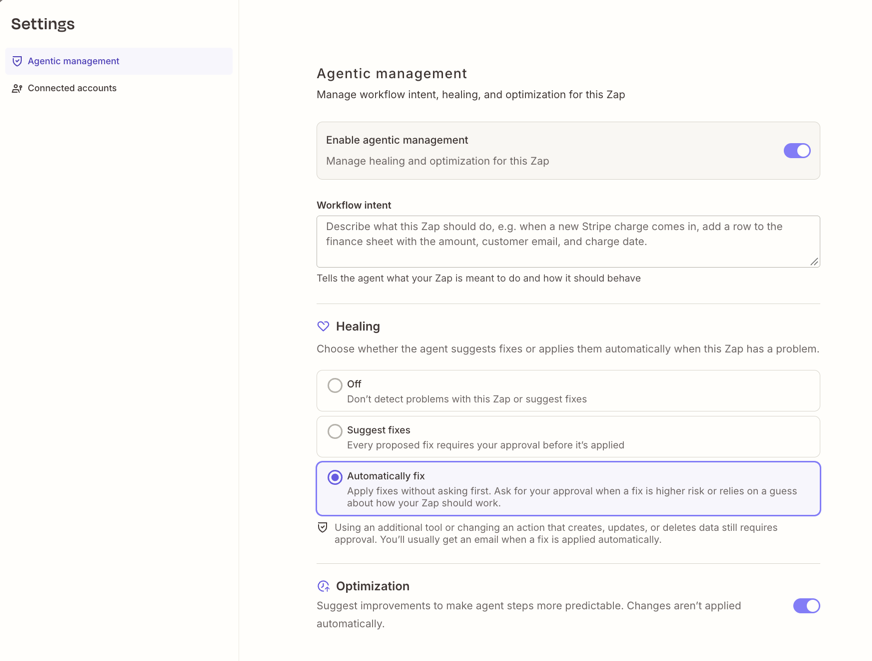
In the Workflow Manager, click the Settings button in the top menu. The Settings window opens on the Agentic management page. You can also reach this page in two other ways:
 in the top menu. The Settings window opens on the Agentic management page. You can also reach this page in two other ways:
- Click the Settings button next to Agentic management above the canvas.
- Click Manage agent on the Agentic management card on the canvas.
How it works
Agentic management has three parts: a switch that turns it on, a workflow intent that tells the agent what the workflow is for, and two capabilities that set the limits of what the agent may do.
Enable agentic management
The Enable agentic management toggle switch turns the whole feature on and off for one workflow. Zapier turns on agentic management when it saves a new workflow, which happens when you create, import, or duplicate it. The Agentic management status on the left of the bar above the canvas reports whether it is On or Off for a workflow.
While it is on, the agent monitors runs, proposes fixes, and works to keep the workflow healthy. If you set Healing to Off and also turn off Optimization, agentic management turns off for that workflow.
When the workflow is published and agentic management is on, an Agentic management card on the canvas repeats the status. The card explains that an agent manages the workflow, and points you to the settings that limit what the agent can do.
Workflow intent
The Workflow intent field holds a plain language description of what the workflow is meant to do and how it should behave. When you build or change the workflow with Zapier in the Workflow Manager, Zapier writes or updates this description. When the agent applies a fix or suggests a change, it checks the change against the workflow intent. This confirms the change still matches what you want the workflow to do.
You can edit the workflow intent at any time. Write it the way you would describe the job to a colleague. For example: "When Stripe reports a new charge, add a row to the finance sheet with the amount, customer email, and charge date."
Healing and optimization
Two capabilities define what the agent is allowed to do: healing and optimization.
Healing sets what the agent does when the workflow has a problem. Choose one option:
| Healing option | What the agent does |
|---|---|
| Off | Does not detect problems with the workflow or suggest fixes. |
| Suggest fixes | Prepares a fix and asks you to approve it before it applies the fix. |
| Automatically fix | Applies fixes without asking first. Asks for your approval when a fix is higher risk or relies on a guess about how your workflow should work. |
When Zapier turns on agentic management for a new workflow, Healing starts on Automatically fix.
Optimization is a toggle switch. When it is on, the agent reviews successful runs of agent steps and suggests how to make them more predictable. The agent does not apply these suggestions on its own.
With Automatically fix selected, a small code change goes ahead on its own. The agent asks for your approval first when a fix:
- Uses an additional tool, or changes an action that creates, updates, or deletes data.
- Changes an asset or an app connection, which Zapier treats as high risk.
- Relies on a guess about how the workflow should work, or the agent has low confidence in it.
The agent saves each fix as a draft and tests it, then publishes the change as a new version. With Suggest fixes selected, you approve the test, then the publish. You can review what the agent changed in the version history. The test runs the fixed workflow with real data and your app connections, so it can send real emails or create real records. With Automatically fix selected, the agent runs the test without asking, unless it rates the fix as high risk.
By default, Zapier tries each step up to five times. If a step still fails, the run fails, and the agent reviews the error and works out a fix.
The agent only acts on a run that reports a problem.
Notifications
During early access, Zapier notifies you by email when the workflow needs your review and when the agent applies a fix.
- When the agent changes the workflow without your approval, the email links to the new version, so you can review what changed.
- When the workflow needs you, the email has a Review workflow button, which opens the workflow with a summary from the agent in the sidebar.
When the agent emails you about a failed run, Zapier will not also send a failed-run email for that run.
When to use it
Agentic management is useful in these kinds of situations.
| Situation | How agentic management helps |
|---|---|
| Something upstream changes, such as a renamed field | Healing diagnoses the failure and prepares a fix. With Automatically fix selected, it repairs the workflow without waiting for you. |
| You do not check the workflow often | Zapier emails you when a fix needs your approval, and when the agent applies one. |
| Your workflow has an agent step | Optimization suggests how to make that step more predictable. |
If an app connection expires or is revoked, Zapier holds the run instead of failing it. The run shows which app to reconnect, and Zapier also emails you about the expired connection. After you reconnect, click Release in the Held run banner on the run so it continues. The agent does not reconnect apps or move a workflow to a different connection.
If you would rather approve each change yourself, set Healing to Suggest fixes while you learn what the agent proposes. Switch to Automatically fix once you trust the fixes it suggests for that workflow.
 Note
Agentic management changes a live workflow. Review the security considerations in Get started with Next Gen Zaps before you select Automatically fix on a workflow that touches sensitive data.
Example
Your Next Gen Zap adds a row to a finance sheet in Google Sheets each time Stripe reports a new charge. A teammate renames the sheet's Amount column to Charge amount, so the next run fails at the Google Sheets step.
- Healing diagnoses the failure: the step writes to a column that no longer exists. The agent prepares a fix that sends the amount to Charge amount, and checks the fix against the workflow intent.
- Healing is set to Suggest fixes, so the agent waits for you. Zapier emails you that the workflow needs review.
- You click Review workflow in the email. The workflow opens, with a summary of the fix from the agent in the sidebar.
- You click Approve on the Test workflow card. The agent tests the fix, which adds a real row to the sheet.
- You click Approve on the Publish automation card. The agent publishes the change as a new version.
The next charge goes into the correct column, and the version history records what the agent changed.
Next steps
With agentic management, you can determine what the agent monitors and fixes.
- Read Get started with Next Gen Zaps for the security considerations that apply to the whole product.
- Read Use the Workflow Manager to build and view your Next Gen Zaps for where these controls sit.
- Read Create Next Gen Zap drafts and versions to review what the agent changed.