Agentic Management lets an agent monitor a Next Gen Zap after you build it. The agent reviews each run, diagnoses failures, and prepares a fix, so a broken workflow does not sit failing until you notice it. You decide how much the agent is allowed to do on its own.
This is different from the other two ways an agent takes part in a Next Gen Zap. Building with the AI assistant happens when you create or change the workflow. An AI by Zapier step runs an agent inside the workflow, every time the workflow runs. Agentic Management does neither: it monitors the workflow itself, and acts on runs that already happened.
By the end of this article, you'll understand what the agent monitors, what each capability allows, and what changes without your approval.
Available on plans:

Free

Professional
Team
Enterprise
 Early Access
Next Gen Zaps is in early access by request. Sign up at https://zapier.com/workflow/early-access. If you’re on a Team plan, the request must come from an account owner or admin. If you’re on an Enterprise plan, contact Support for access. This feature has limited availability and is in active development.
Where to find it
To open your workflow in the Workflow Manager, click Automations in the Zapier left sidebar, select Next Gen Zaps in the second sidebar, then click the workflow.
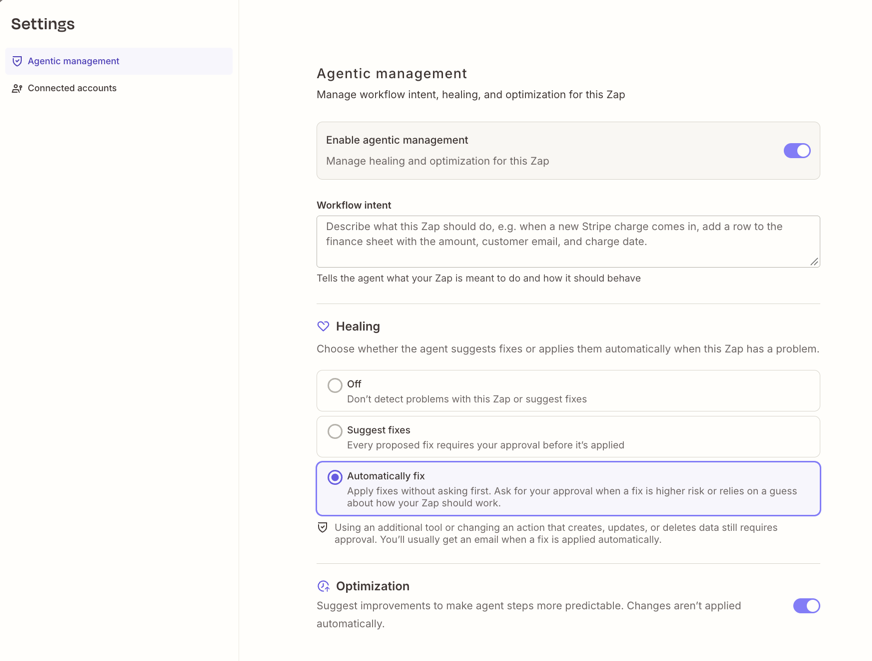
In the Workflow Manager, click the Settings button in the top menu. The Settings window opens on the Agentic management page. You can also reach this page in two other ways:
 in the top menu. The Settings window opens on the Agentic management page. You can also reach this page in two other ways:
- Click the Settings button next to Agentic management above the canvas.
- Click Manage agent on the Agentic management card on the canvas.
How it works
Agentic Management has three parts: a switch that turns it on, a workflow intent that tells the agent what the workflow is for, and two capabilities that set the limits of what the agent may do.
Enable Agentic Management
The Enable agentic management toggle switch turns the whole feature on and off for one workflow. Zapier turns on Agentic Management when it saves a new workflow, which happens when you create, import, or duplicate it. The Agentic management status on the left of the bar above the canvas reports whether it is On or Off for a workflow. While it is on, the agent monitors runs, proposes fixes, and works to keep the workflow healthy.
If you set Healing to Off and also turn off Optimization, Agentic Management turns off for that workflow.
When the workflow is published and Agentic Management is on, an Agentic management card on the canvas repeats the status. The card explains that an agent manages the workflow, and points you to the settings that limit what the agent can do.
Workflow intent
The Workflow intent field holds a plain language description of what the workflow is meant to do and how it should behave. The agent builds this description up over time as you work on the workflow with the AI assistant. When the agent applies a fix or suggests a change, it checks the change against the workflow intent. This confirms the change still matches what you want the workflow to do.
You can edit the workflow intent at any time. Write it the way you would describe the job to a colleague. For example: "When Stripe reports a new charge, add a row to the finance sheet with the amount, customer email, and charge date."
Healing and optimization
Two capabilities define what the agent is allowed to do: healing and optimization.
Healing sets what the agent does when the workflow has a problem. Choose one option:
| Healing option | What the agent does |
|---|---|
| Off | Does not detect problems with the workflow or suggest fixes. |
| Suggest fixes | Prepares a fix and asks you to approve it before it applies the fix. |
| Automatically fix | Applies a fix without asking first, and tells you afterwards. |
Optimization is a toggle switch. When it is on, the agent reviews successful runs and suggests improvements. For example, it can suggest how to make an agent step more predictable, based on the last few runs. The agent does not apply these suggestions on its own.
Some fixes always need your approval, even with Automatically fix selected. A small code change goes ahead on its own. The agent asks you first when:
- The fix changes what the workflow can do, such as adding a tool call, an action, or a branch.
- The agent has low confidence in the fix.
- The fix changes an asset or an authentication, which Zapier treats as high risk.
Whenever the agent applies a fix, it tests the workflow first, then publishes the change as a new version. You can review what it changed in the version history.
A failed run retries up to five times before the agent starts. Once those retries are exhausted, the workflow goes into error mode, and the agent reads the error and works out a fix.
The agent only acts on a run that reports a problem.
Notifications
During early access, Zapier notifies you by email. You get an email at each stage of the agent's work: when a run fails, when the workflow needs your review, and when a fix is applied.
- When the agent changes the workflow without your approval, the email links to a diff of what changed.
- When the workflow needs you, the email opens the fix in the sidebar, with a summary from the agent and a button to approve it.
When to use it
Agentic Management is useful in these kinds of situations.
| Situation | How Agentic Management helps |
|---|---|
| Something upstream changes, such as a renamed field or an expired connection | Healing diagnoses the failure and prepares a fix. With Automatically fix selected, it repairs the workflow without waiting for you. |
| You do not check the workflow often | Zapier emails you when a run fails, with the fix the agent proposes or already applied. |
| You are still tuning the workflow | Optimization reviews successful runs and suggests improvements you might not go looking for. |
If you would rather approve each change yourself, set Healing to Suggest fixes while you learn what the agent proposes. Switch to Automatically fix once you trust the fixes it suggests for that workflow.
 Note
Agentic Management changes a live workflow. Review the security considerations in Get started with Next Gen Zaps before you select Automatically fix on a workflow that touches sensitive data.
Example
Your Next Gen Zap adds a row to a finance sheet in Google Sheets each time Stripe reports a new charge. A teammate renames the sheet's Amount column to Charge amount, so the next run fails at the Google Sheets step.
- Zapier emails you that the run failed.
- Healing diagnoses the failure: the step writes to a column that no longer exists. The agent prepares a fix that sends the amount to Charge amount, and checks the fix against the workflow intent.
- Healing is set to Suggest fixes, so the agent waits for you. The email opens the fix in the sidebar, with a summary from the agent and a button to approve it.
- You approve the fix. The agent tests the workflow, then publishes the change as a new version.
The next charge goes into the correct column, and the version history records what the agent changed.
Next steps
With Agentic Management, you can determine what the agent monitors and fixes.
- Read Get started with Next Gen Zaps for the security considerations that apply to the whole product.
- Read Use the Workflow Manager to build and view your Next Gen Zaps for where these controls sit.
- Read Create Next Gen Zap drafts and versions to review what the agent changed.