Lead Router lets you set capacity limits on your sales reps to control how many leads they receive within a given time window. You can set capacity at the global level, across all queues, or at the queue level, for an individual queue. This keeps reps from being overwhelmed and helps make sure leads go to reps who have bandwidth to work them.
By the end of this tutorial, you'll have configured capacity limits for your sales reps, either globally or for a specific queue, so Lead Router automatically stops sending them leads once they hit their limit.
Before you begin:
- Set up your sales reps and queues in Lead Router.
- Familiarity with how capacity levels and window types work in Lead Router is helpful, but not required.
Set global capacity
Global capacity is the maximum number of leads a rep can receive across all queues within a time window.
- From the Lead Router home, click Sales Reps.
- Find the rep you want to configure.
- Click the expand icon next to the rep's row number. The Edit reps dialog opens.
- Click the time interval dropdown menu (defaults to No limit) and select Daily, Weekly, N days, N hours, N minutes, N seconds, or All time. A field appears to the left of the dropdown menu.
- In that field, enter the maximum number of leads.
- Click Save changes.
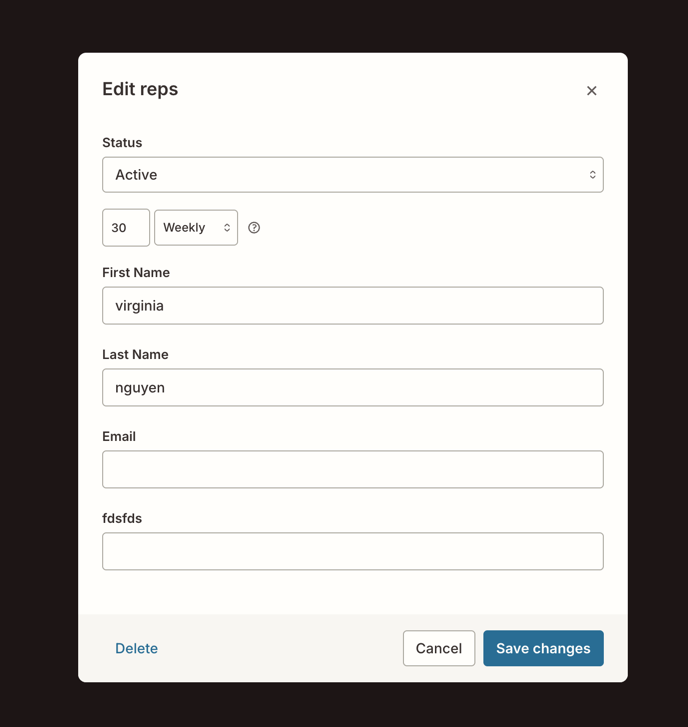
Leave the time interval dropdown menu set to No limit to allow unlimited leads for that rep.
Set queue-level capacity
Queue capacity lets you set different limits for each rep within a specific queue. A rep can have different capacity limits across different queues.
- From the Lead Router home, click Queues.
- Click the name of the queue you want to configure.
- Click Edit. You're taken to the Edit Queue page, showing all reps assigned to the queue.
- For each rep, click the Queue Capacity dropdown menu (defaults to No limit) and select Daily, Weekly, N days, N hours, N minutes, N seconds, or All time. A field appears to enter the maximum number of leads.
- Click Save changes.
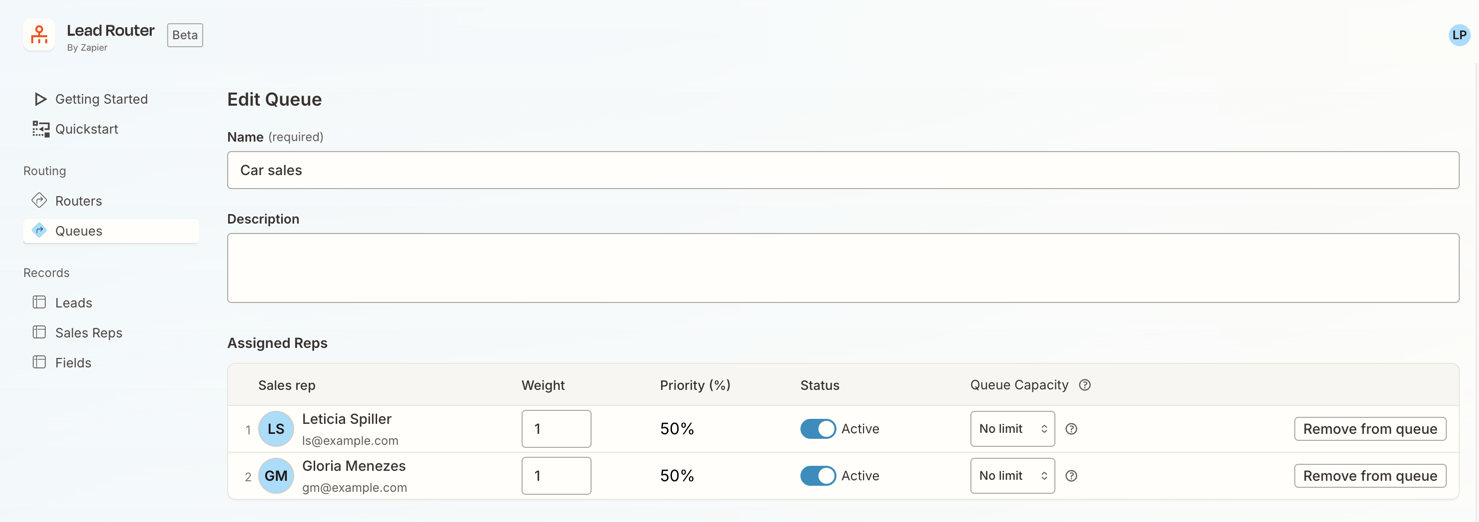
The capacity settings appear on the queue overview page.
Luiz has a queue capacity of 10 leads daily, Amanda has capacity for 10 leads every hour, and Ericsson can receive 5 leads every 10 seconds.
Set capacity programmatically with a Zap
You can also manage rep capacity through Zap actions using the Zapier Lead Router app. This lets you adjust limits based on external triggers, such as CRM updates, calendar events, or scheduled workflows. A Zap workflow also allows you to set an effective from date, which switches a limit from a sliding window to a fixed window. Learn more about capacity levels and window types in Lead Router.
The Update Sales Rep and Update Queue Membership actions support setting capacity fields, including the capacity limit, interval type and value, and an effective from date to enable fixed window mode.
Learn more about automating sales rep management in Lead Router.
Limitations
- Global capacity takes priority over queue capacity. If a rep hits their global limit, they stop receiving leads in every queue, even if they have not hit their individual queue limits yet.
- You can only set an effective from date programmatically, using a Zap action. It is not currently available in the Lead Router UI, so limits you set directly in Lead Router always use a sliding window.
Next steps
You have set capacity limits for your sales reps, either globally or for a specific queue, so Lead Router automatically manages how many leads each rep receives.
- Review capacity levels and window types in Lead Router to understand how sliding and fixed windows may affect these limits.
- Automate sales rep management in Lead Router to adjust capacity programmatically with a Zap.
- Check distribution types in Lead Router to review how capacity limits interact with round-robin and weighted distribution.
- Review managing data in Lead Router to keep your queues and rep records up to date.