Zapier is migrating Agents (agents.zapier.com) to AI by Zapier, a more powerful AI experience built directly into the Zap editor. This guide explains why Zapier is making this change, what changes for you, and how to migrate your agents to AI by Zapier.
Why Agents is migrating to AI by Zapier
Agents ran as a standalone product at agents.zapier.com. Because it lived outside the core Zapier platform, you could not combine your agents with the full library of Zap triggers, actions, filters, branching logic, and automation history.
AI by Zapier brings everything together. Your agent's tool calling, AI reasoning, and autonomous task execution now run inside a single AI by Zapier step in the Zap editor, on the same infrastructure that powers your other Zaps.
Benefits of migrating
AI by Zapier lets you mix and match, within a single Zap, agentic steps that reason and act autonomously, AI steps for tasks like summarization and classification, and deterministic steps for precise, predictable actions. You are no longer limited to choosing between "let the agent handle everything" and "hard-code every step."
After migration, you can reorganize your Zap to take advantage of this flexibility. For example, you can move a specific tool call into a dedicated native step for more precise control. Migration itself does not do this automatically. Your migrated agent runs as a single AI step, exactly as it did before, until you choose to restructure it.
Granular control
- Model selection. Choose from Standard, Advanced, and Premium model tiers based on your task's complexity and cost needs, or select a specific model.
- Per-tool approvals. Turn on Require approval before running for any tool to pause the run and ask for your approval before AI by Zapier uses it. Leave it off for low-risk actions, such as reads, and turn it on for sensitive actions, such as writes.
More reliable outcomes
- Structured output and input fields. Define exactly what fields the AI should return, and pass clear, typed inputs into the step from earlier Zap steps, so results map directly into downstream steps without extra parsing.
- Full observability in Zap history. Every agentic run is recorded in Zap history alongside your other automations. Open any run to review which tools were called, what data was passed, which model tier was used, and how many tasks it consumed, all from the same interface you use for every other Zap step.
Cost control
- Task-based billing. AI by Zapier uses the same task-based pricing as the rest of Zapier. You no longer manage a separate Agents subscription or add-on fees, and you can review exactly which tasks a run consumed, broken down by tool call, model tier, and step, in Zap history.
- Task usage guardrails. If a single run exceeds its task limit (75 by default, adjustable up to 500), it automatically pauses for your review before continuing. This helps prevent runaway costs from long-running loops or repeated tool calls.
Admin controls
- Approval flows for publishing. Admins can require Zaps that contain AI steps to go through an approval process before they publish, giving your team a consistent review gate for AI-powered automation.
- Account-level agentic controls. Admins can enable or disable tool calling and agentic behavior at the account level from the Admin Control Center. Organizations that previously had Agents blocked will have tool calling off by default in AI by Zapier, and can unblock it at any time.
- Model blocking. Admins can restrict which models are available to users in their organization.
Easier to navigate
Your Zaps, including migrated agents, all appear in the same asset listing as the rest of your automations. You no longer need to switch between zapier.com and agents.zapier.com.
When to migrate
Zapier has not set a date to turn off Agents yet. Before any changes happen, Zapier will email affected users with enough notice to migrate their agents.
If your Enterprise plan includes Agents, contact your account rep for your migration plan.
How to migrate your agents to Zaps
Zapier automatically converts your agents to Zaps. You do not need to rebuild anything from scratch. Each converted agent becomes a Zap with a native trigger step and a single AI by Zapier step. That AI step contains your original prompt, tool calls, and AI reasoning, all in one place.
What migration creates:
- A native trigger step (scheduled, webhook, and so on)
- A single AI by Zapier step that contains your agent's prompt, instructions, and all connected tools
What stays inside the AI step (not converted to separate native steps):
- Your agent's prompt and instructions
- Your connected tools and all tool calls
- Your agent's AI reasoning
 Note
NoteMigration does not split your tool calls into separate native Zap steps. Your tools continue to run inside the AI step, the same way they did in your agent. If you want to move individual actions into dedicated native steps for more granular control, you can do this manually after migration. This is optional. Your migrated Zap works without it.
To migrate and publish your Zap:
- Go to agents.zapier.com and open your agent list.
- Each agent shows a Migrate your Zap link. Click it to start the migration.
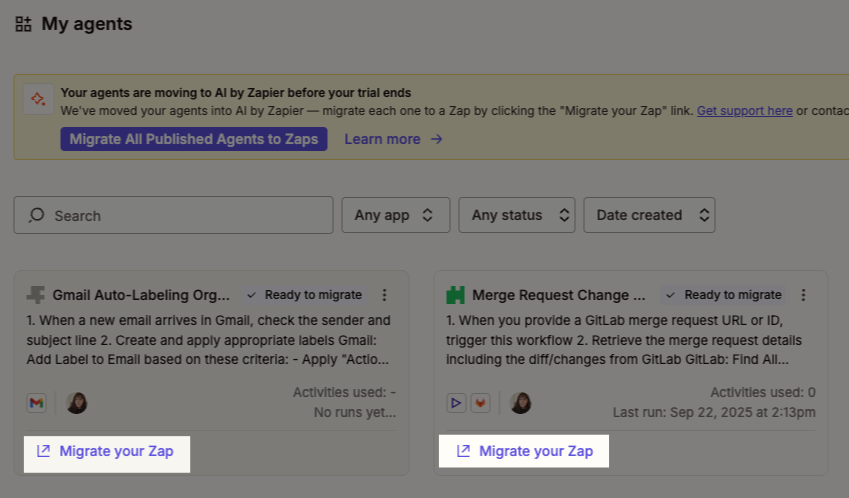
- A dialog box will appear once your Zap is ready to review. Click Open Zap.
- In the Zap editor, click your AI by Zapier step to review your prompt and tools in the Configure tab.
- Click Edit to make any changes.
- Click Preview to run the AI step with the sample data. Review the AI's output, which tools it called and what they did, and how many tasks the run consumed.
- If the output looks correct, click the arrow button to proceed.
- Click the Test tab.
- Click Test Zap to run the complete workflow end-to-end.
- Review the results in the test panel. If anything looks off, adjust the prompt or tool settings directly in the step.
- Once all steps are tested and you are happy with your workflow, click Publish.
- A confirmation dialog will appear. Select the checkbox to confirm you want the Zap to go live, then click Publish agent. By default, your tools run without pausing for confirmation. To review specific tool actions before they run, turn on Require approval before running for that tool in the step settings.
- A dialog box will ask if you want to turn off your original agent. Click Turn off agent.
Once you review and publish each Zap, your agent list updates to reflect the migration. Each migrated agent shows as Published, with an Open Zap link and a confirmation banner at the top of the page.
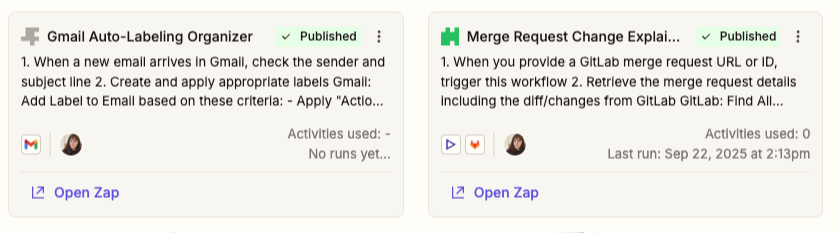
To migrate several agents at once, in the banner at the top of the My agents page, click Migrate all published Agents to Zaps instead of migrating them individually.
Full-Zap tests currently consume tasks the same way production runs do. Zapier is working on a fix for this. Keep this in mind while testing.
Features that work differently in AI by Zapier
Agent-to-agent calling
If your agent calls other agents, or is called by another agent as a sub-agent, follow the standard migration flow, then make these additional changes:
- Migrate your agent to a Zap using the standard flow described above.
- In the Zap editor, change the trigger to Sub-Zap by Zapier.
- Update any parent Zaps or migrated agents that previously called this agent to point to the new sub-Zap.
On-demand (chat-triggered) agents
On-demand agents, the kind you trigger by chatting with them, do not have a direct equivalent trigger in the Zap editor yet. You can replicate this experience with a webhook trigger, which lets you send a message from any chat surface, such as Slack, a web app, or a custom interface, to start your Zap.
How to turn off your agent after publishing
If you did not turn off your agent in step 9, both your Zap and agent can run at the same time, which may cause duplicate actions. To turn off your agent:
- Go to agents.zapier.com and find the original agent.
- Click Edit agent.
- Click Publish ∨.
- Click Unpublish to deactivate it.
- To confirm the agent is off, click Publish ∨ again. The dropdown will display "Your agent is not published".
Repeat this process for each agent you want to migrate.
Enterprise and admin controls
Admins can enable or disable tool calling and agentic behavior at the account level from the Admin Control Center. If your admin restricted tool calling, the AI by Zapier step shows that it is available but currently blocked, with a path to request access.
Organizations that previously had Agents blocked will have tool calling turned off by default in AI by Zapier. Admins can unblock it at any time from the Admin Control Center.
Super admins: migrate Zaps on behalf of users
Super admins can publish migrated Zaps on behalf of users in their organization, without requiring each user to act individually. This lets admins complete the migration for their entire team from one place.
To find agents owned by other users in your organization, go to your shared agents page. Follow the steps in How to migrate your agents to Zaps to migrate each agent. When publishing a Zap using another user's connection, you are prompted to confirm before proceeding.
Publishing a Zap on behalf of another user runs it on their connected accounts, such as their Gmail or Slack. Any actions the Zap takes happen as that user. Avoid live triggers, like sending email, unless you confirm with that user first.
Not supported yet
A small number of Agents features are not yet available in AI by Zapier:
| Feature | Status | Note |
|---|---|---|
| Bring Your Own Model (BYOM), admin-level | Coming in a future release | You can already connect your own API key at the user level to reduce the task multiplier applied to your runs. Org-wide, admin-level model configuration is what is not yet available. |
If your agent relies on BYOM, contact your account rep for guidance on next steps.
Knowledge sources
Sources available in Agents, including HubSpot, Asana, Zendesk, Zoom, and Jira, are not yet supported in AI by Zapier. Support for these sources is planned for Q4 2026. If your agent relies on one of these, contact your account rep for guidance on next steps.
If your agent uses a knowledge source that AI by Zapier does support, such as Notion, review the following before and after you migrate:
- Large knowledge sources may fail to add. If a source has 1,000 or more pages or files, adding it as a new knowledge source can time out. This applies to all knowledge source apps, such as a large Notion workspace or Google Drive folder. Agents handled knowledge sources of up to 1,500 pages without this issue.
- Older or less-recently-synced pages may intermittently fail to be found. Re-test search reliability for pages that have not loaded into the tool recently.
- Loading behavior is different from Agents. Agents automatically loaded and kept searching until it found a match, with no manual action needed. AI by Zapier currently requires you to click Load more repeatedly, and it may not surface long-tail pages.
- Your connected account needs access to every page you add. For example, your Notion integration must have access to every page you intend to use as a knowledge source. Missing permissions can surface as "page not found" instead of a clear permission error. Verify access first if a page will not resolve.
- Some content types are not supported yet. Certain source content types, such as specific Notion block types, are not yet supported and can cause errors when a page is indexed. Fixes are actively rolling out.
For general guidance on knowledge sources in AI by Zapier, review Add tools to your AI by Zapier step.
FAQ
No. Zapier automatically converts your agent's prompt and tools into a Zap. Find it, test it, and publish it.
No. Migration keeps your entire agent (prompt, tool calls, and AI reasoning) inside one AI by Zapier step. The only native step migration creates is the trigger. Your Zap works out of the box without any restructuring.
If you want to move specific tool calls into their own native Zap steps for more granular control, you can do that manually after migration. This is optional.
Test your migrated Zap before turning off your original agent. If something does not work as expected, contact your account rep or Zapier support.
Yes, until you turn off your agent, both run independently. Turn off your agent after you publish your Zap to avoid duplicate actions.
Next steps
You have learned why Agents is migrating to AI by Zapier and how to move your agents to Zaps.
- Best practices for migrating from Agents to AI by Zapier: Review what to check after migrating any agent, including output fields, task limits, and knowledge source loading.
- Use AI by Zapier to analyze and return data: Get familiar with the AI by Zapier step your migrated agent now runs on.
- Add tools to your AI by Zapier step: Configure model tiers and per-tool approvals for your migrated Zap.
- AI by Zapier model tier pricing: Understand how task usage is calculated.
- Contact your account rep (Enterprise customers) or Zapier support if you need help with your migration.