Looping by Zapier lets you run an action or set of actions more than once in a single Zap. Instead of setting up the same action multiple times, you can use a loop to repeat it for each item in a list.
Available on plans:

Free

Professional
Team
Enterprise
 Beta
BetaThis feature is in open beta release. It's available for use but is still in active development and may change.
When to use looping
Looping is useful when you need to process multiple items individually. Common scenarios include:
- Adding multiple contacts to a CRM from a list of email addresses.
- Creating multiple rows in a spreadsheet from line items in an order.
- Sending individual messages to multiple recipients.
- Processing each item in an invoice or order separately.
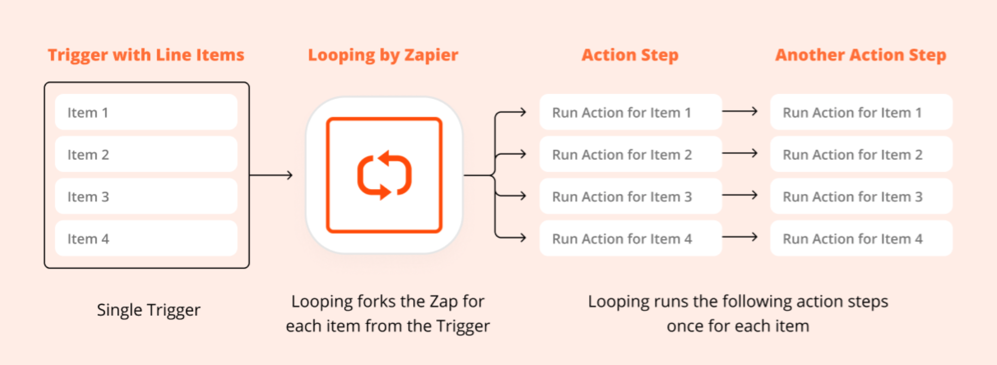
You have a list of email addresses to add to your contact list, but each Add Contact action will only add 1 contact. Instead of adding multiple Add Contact actions for each contact, you can use a Looping step followed by an Add Contact action. This will loop the Zap through the Add Contact step once for each contact in your list. This way, you only have to set up the Add Contact step once.
 Note
NoteLooping by Zapier allows you to create an intentional loop, unlike accidental Zap loops.
How looping works
When you add a loop to your Zap:
- All iterations of the loop execute in parallel (simultaneously), not one after another.
- Any action that follows a looping step runs once for each value you input into the loop.
- Each loop iteration results in a separate Zap run in your Zap history.
You can create loops from:
- Text: Split a text string into individual values using a delimiter (like commas)
- Line items: Loop through each item in a set of line items
- Numbers: Run a specific number of loop iterations based on a numeric range
Task usage
- Using the Looping by Zapier tool does not count towards your task usage.
- An action that runs before the loop appears in each Zap run but only uses 1 task.
- Each action step after the loop uses 1 task for each loop that runs. For example, if your loop runs 500 times, an action step after the looping step uses 500 tasks when the Zap runs.
Limitations
- Nested loops: Nested loops are not supported. You cannot turn on a Zap with more than one Looping by Zapier step.
- Maximum number of loops: You can set your looping step to run up to 500 times. If you need to loop more than 500 times, contact Zapier support to be added to the feature request.
-
Using loop actions withPaths :
- You cannot add a loop to more than one path in a Zap.
- Loops always run in parallel (simultaneously). This happens even if the loop is nested within a Path configured to run sequentially.
- Using loop actions with a Sub-Zap : Loop actions cannot be added before a Return from Sub-Zap step within a sub-Zap. When using looping sub-Zap workflows, only the first Return From a Sub-Zap step will run successfully.
Next steps
- Create a loop in your Zap: Step-by-step instructions to set up looping.
- Line items in Zapier: Learn about line items, which work well with loops.
- Add branching logic with Paths: Combine loops with conditional logic.