With in-line formulas, you can transform text, numbers, and other data into the format you need. To set up in-line formulas, you add them inside the fields where you need to transform data–there’s no separate step required, unlike the Formatter app.
Available on plans:

Free
Professional
Team
Enterprise
 Early Access
In-line formulas is available through the Zapier Early Access program. This feature has limited availability and is in active development.
Add an in-line formula to a field
When setting up your action step:
- Click the plus sign icon at the end of a field to open the dropdown menu. - For dropdown menu field types, switch to using a custom value first.
- In the top menu bar, select Formulas.
- Select a formula. The step will add it to the field’s input box.
- Replace all placeholder values between quotation marks with the values you want to transform. - You can double click the placeholder value to select it, then replace it with a mapped field.
 at the end of a field to open the dropdown menu.
- For
at the end of a field to open the dropdown menu.
- For 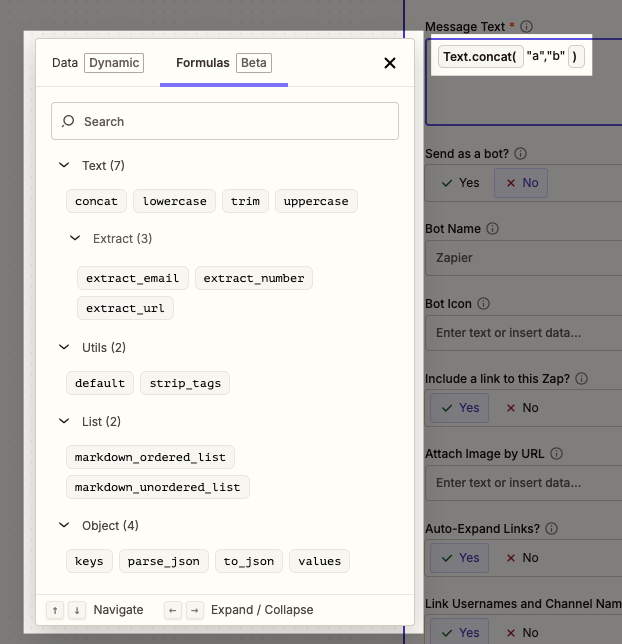
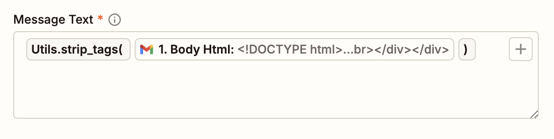
If you want to remove HTML tags from the body of an email, you can use the Utils.strip_tags formula. Select it, then replace “value” with the body of the email. When the Zap runs, it will remove all HTML tags like and return plain, unformatted text.
For the value:
I would like to order two bunches of violets.
I do not want any that have been trod in the mud.
Please reply with pricing.
Kindest regards,
Henry Higgins
The Utils.strip_tags formula would output:
I would like to order two bunches of violets.
I do not want any that have been trod in the mud.
Please reply with pricing.
Kindest regards,
Henry Higgins
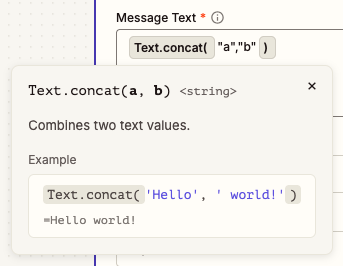
When you hover over an in-line formula in your field, a pop-up will appear that explains what the formula is and provides examples of how to use it.
Limitations
- You cannot combine static and dynamic values inside a formula.
- Nest the
Text.concatformula inside another formula to combine them first.
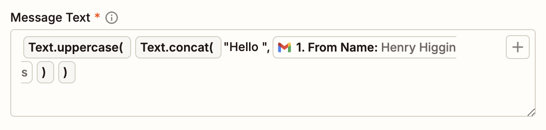
- When you test a step that contains an in-line formula, the Data in tab will display the entire formula, not the transformed data. You can review the output in the live test result in your app instead.
- List formulas will not accept CSV values.
- You can use the
Object.parse_jsonformula to parse it into a list the formula can accept. You can also add a Formatter step to transform your CSV into line items instead. - Deleting a formula does not delete its values. You must delete those separately.
Additional resources
Learn more about available in-line formulas and tips and tricks for using in-line formulas.