Zapier Tables records can trigger or continue Zap workflows. When you connect Zap workflows to a table, you can decide if you want to send records to Zap workflows manually or automatically.
Available on plans:

Free
Professional
Team
Enterprise
Zapier Tables steps that run in a Zap do not count toward your Zap task usage.
Decide how records should be sent to Zap workflows
How you add or update records to your table will determine how records are sent to Zap workflows.
| How record is created or updated | Default behavior for how records are sent | Can you change the default? |
|---|---|---|
| You create or update records manually. | Manually | Yes |
| You set up a Zap to automatically create or update records. | Automatically | No |
Records created manually
When you connect a Zap to a table, it will show a new field called Record status. By default, your table will add a “Pending” label to any records you add or update. This ensures that you know which records have not been sent to Zap workflows and can send them only when you're ready.
You can change this setting so the table sends records automatically to your Zap workflows instead.
- In the toolbar, click the Settings icon .
- In the Send records section, click Automatically.
 .
.Records created automatically via Zap
If a Zap creates or updates a record in the table, those records will not be set to pending. They will automatically trigger or continue any Zap workflows that are connected to the table. You cannot change this setting.
Manually send records to Zap workflows
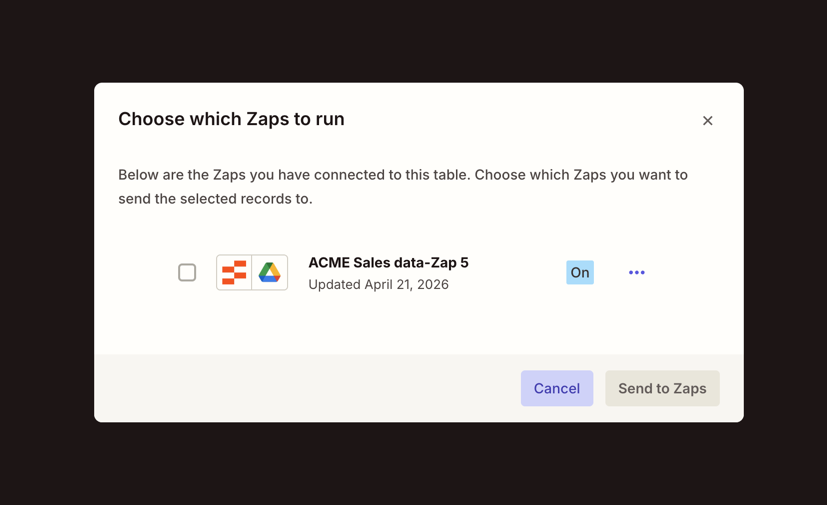
When records are pending, you must take action to send them to Zap workflows. You can decide which records to send and to which Zap workflows, if you’ve connected more than one.
Send all pending records to all Zap workflows
When records are pending, the Send pending records button will appear at the top of the table. Clicking that button will send all pending records to all linked Zap workflows.
Send selected records to Zap workflows
You can select specific records and choose which Zap workflows to send them to:
-
Select the checkbox next to the records you want to send to your Zap workflows.
- To select all visible records, select the checkbox at the header of the table.
- In the toolbar, click Automate records. A dialog box will open.

- In the dialog, select the checkbox next to each Zap you want to send records to.
- Click Send to Zap workflows.