You can use WhatsApp Notifications in your Zap workflows to send yourself WhatsApp messages to your WhatsApp account.
Messages are limited to prefilled templates for:
- New Lead
- New Message
- Payment Confirmation
- New Order
- Shipping Confirmation
- Calendar Reminder
- Zap Error
To send yourself a text message:
1. Select your app and action event
- In the Zap outline, click the Action step or the plus sign + to add a new action. A dialog box will open.
- Search for and select WhatsApp Notifications by Zapier.
- Click the Action event dropdown menu and select Send Message.
- Click Continue.
2. Confirm your phone number
- Click Sign In.
- The authentication dialog box will appear.
- Click the hyperlink this link. This will open a new tab in your browser to connect to your WhatsApp account.
- In the new tab, click Continue to Chat.
-
You’ll then be prompted to open WhatsApp.
- If you have the WhatsApp application installed on your computer, you’ll receive a prompt to open up your WhatsApp application.
- If you don’t have the WhatsApp application, you can download it or use WhatsApp Web instead.
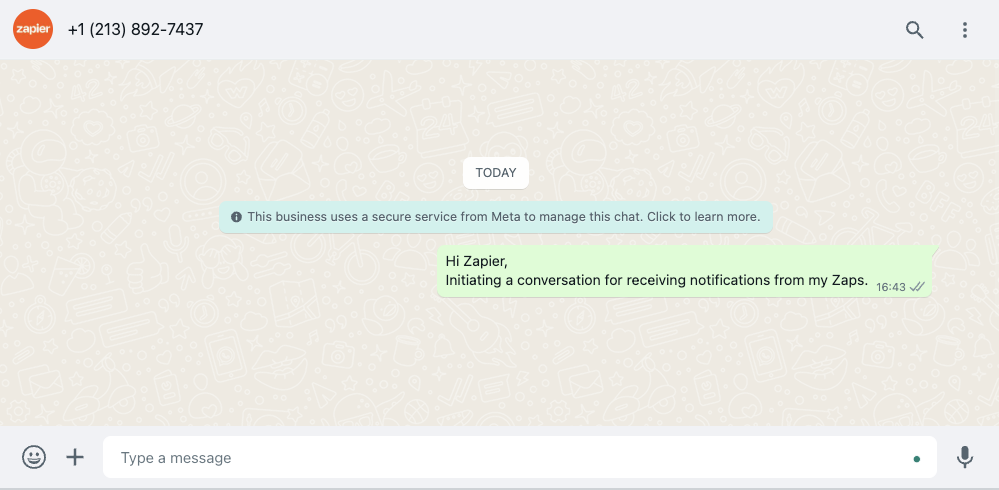
- Once you’ve opened WhatsApp in either the web browser or application, you’ll have a pre-filled message to send to Zapier. Click send.
- Switch tabs to your authentication dialog box tab.
Tip
To switch between tabs, use the keyboard shortcut Cmd + Shift + A (Mac) or Alt + Shift + A (Windows)
- In the Phone Number (WhatsApp) field, add your phone number linked to your WhatsApp account. It must include the country code, without any spaces or dashes.
- Click Send PIN. Zapier will send the OTP Code to your WhatsApp number.
- In the OTP Code field, add the OTP Code.
- Click Yes, Continue to WhatsApp Notifications by Zapier.
- Click Continue.
3. Customize your message
-
From the Template dropdown, select what type of message you want to send:
- New Lead:
- 🚀 New lead alert: [First Name] [Last Name] is interested in your services!
- Email: [email address]
- Phone: [phone number]
- Lead Source [lead source]
- See Details: [link to lead]
- New Message:
- 📬 New message from [First Name] [Last Name]. Reply now at: [link to reply].
- Payment Confirmation:
- 💰"Cha-ching! You received a [payment amount] from[First name] [last name]!
- New Order:
- Hey there! 🛍️ Your order [order number] has been confirmed.
- Shipping Confirmation:
- 📦 Good news! Your package is on its way! Track your order with this link: [Tracking Link]
- Calendar Reminder:
- "📅 Friendly reminder:[calendar event name] at [date] at [time].
- Zap Error:
- ⚠️ It looks like your Zap ran into an error: [Error Message] Link to Zap/Task History: [Link]
-
Once a template is selected, the relevant fields related to the template will appear. Complete all relevant and required fields.
- Your message, including the template and all of the information you add, must be 1024 characters or fewer.
- Each link field only accepts one URL.
- Click Continue.
Note
 Note
NoteCustom templates cannot be created. If you would like to see new templates added, let our Support team.
4. Test your step
- Click Test step. If the step is successful, you’ll receive a message.
Once you’ve set up your WhatsApp Notification action, you can add another action or finish setting up your Zap.