If you work with multiple Zapier accounts, you can copy assets between them. This works for Zap workflows, Tables, Forms, Interfaces, Chatbots, and Agents. Copying assets lets you reuse automations and resources across accounts without rebuilding them from scratch.
Prerequisites
If your account has single sign-on through SAML enabled, an admin must provision your account in your company identity provider before you can copy assets between accounts.
Copy assets to another account
To copy assets:
- Go to your Assets page.
- Select the checkbox next to each asset you want to copy. You can copy multiple assets at once. A menu bar will appear at the bottom of the page.
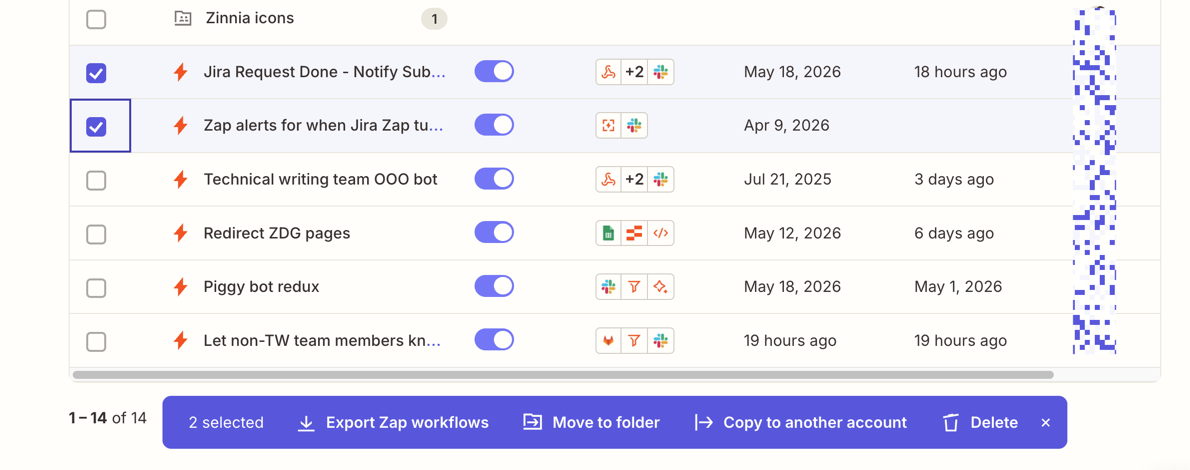
- In the menu bar, click Copy to another account.
- Select the destination account. Click Continue.
-
Select an existing folder.
- To add a new folder at the destination, click + Create new folder. A text field will appear and you can name your folder.
- Click Continue to review the changes.
- Click Copy.
Depending on the number of assets you are copying, the process can take some time to finish. Stay on the page until all the assets have been copied.
You can also copy a single asset from its row in the asset list. Click the menu icon on the asset row and select Copy to another account.
 on the asset row and select Copy to another account.
What happens when you copy assets?
When you copy an asset to another account:
- Related assets are not included: If an asset depends on other assets (such as a Zap that uses a Zapier table), you must copy all assets. They are not copied automatically. If they are in the same folder, you can copy them in bulk.
- Sharing and permissions may change: The copied asset inherits the permissions of the destination folder. These may be different from the permissions in the original folder.
- App connections must be re-authenticated: Copied assets include placeholder connections that must be authenticated in the destination account. If you copied Zap workflows, a Connect your apps dialog box will appear after copying. You can select an existing connection or connect a new account for each app. If necessary, share app connections with team members.
- Global variables become static values: Any global variables used in the asset are replaced with their current values at the time of copying.
- Run history and usage data are not copied: Your asset appears in the destination account as a new asset, with no history or usage. All history of the original asset is preserved.
- Zap workflows and agents are turned off after copying: Copied Zap workflows and agents are turned off in the destination account, regardless of their status in the source account. After copying, review and turn on each Zap or agent when ready.
- Webhook URLs change: If a copied Zap uses Webhooks by Zapier, the webhook URL will be different from the original. Update any external services that send data to the webhook.
Limitations
- You cannot copy an asset you do not have View access to.
- You must add an agent to a folder before you can copy it.
Next steps
You've copied assets to another account and they are ready to use.
- Share app connections with members of your Team or Enterprise account to give teammates access to the connected apps in copied assets
- View all assets in your Zapier account to review what's in your destination account
- Manage assets in your Zapier account to rename, move, or delete what you've copied