Use filters to control when your Zap sends data to an action. Before you begin, check how your trigger app provides date and time information. Depending on the format, you may not be able to filter by day or time.
Filter for days
If your trigger data includes the day of the week in any of its fields, you can make your Zap run only on specific days.
For example, Gmail passes along the date and time in a format like Thur, 25 Dec 2025 11:28:00 -0000:

Because the days of the week appear in this field, you can filter by them.
Filter for a specific day
To make your Zap run only on Fridays:
- Add a Filter step to your Zap.
- In the Field dropdown, select the date field from your trigger (for example, Date from Gmail).
- Select the (Text) Contains condition.
- In the value field, enter
Fri.
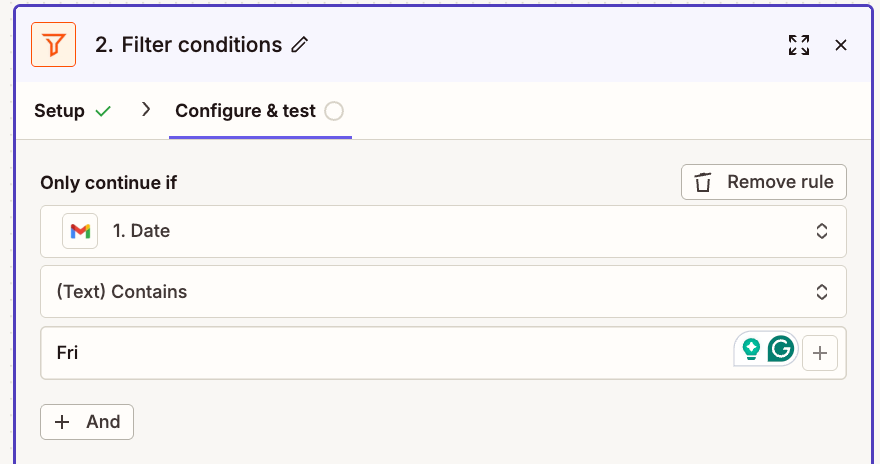
Use the "contains" condition because the field includes additional timestamp information. The "exactly matches" condition would prevent data from passing the filter in this case.
Filter for weekdays only
To make your Zap run only on weekdays, add two filter conditions using AND:
- Add a Filter step to your Zap.
-
Set the first condition:
- Select the date field from your trigger.
- Select (Text) Does not contain.
- Enter
Sat.
- Click + And.
-
Set the second condition:
- Select the same date field.
- Select (Text) Does not contain.
- Enter
Sun.
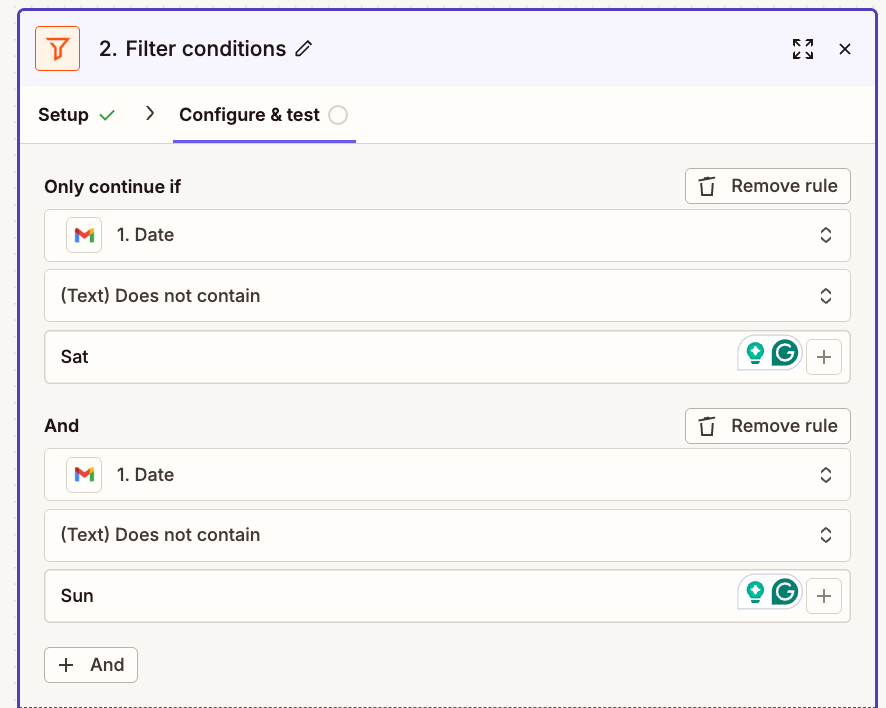
Use "AND" because both conditions must be true for the Zap to skip weekends. Using "OR" would make the Zap run every day, since one condition would always be true.
Filter between certain dates and times
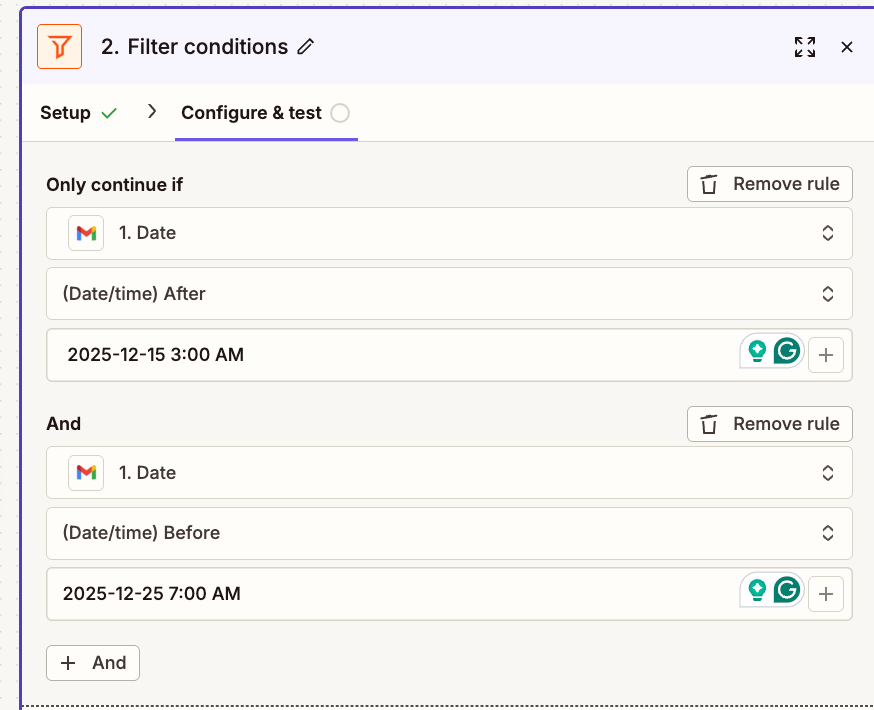
You can use the "After Date/Time" and "Before Date/Time" filters to define a date and time range.
To filter for a specific date range:
- Add a Filter step to your Zap.
-
Set the first condition:
- Select the date field from your trigger.
- Select (Date/Time) After.
- Enter the start date and time (for example,
2025-12-15 3:00am).
- Click + And.
-
Set the second condition:
- Select the same date field.
- Select (Date/Time) Before.
- Enter the end date and time (for example,
2025-12-25 7:00am).
In this example, the Zap continues only if the date is between December 15, 2025, 3:00 AM and December 25, 2025, 7:00 AM:
Compare to today's date
If your trigger passes a date and you only want your Zap to run when that date matches today's date, you can use a combination of Formatter and Filter steps.
-
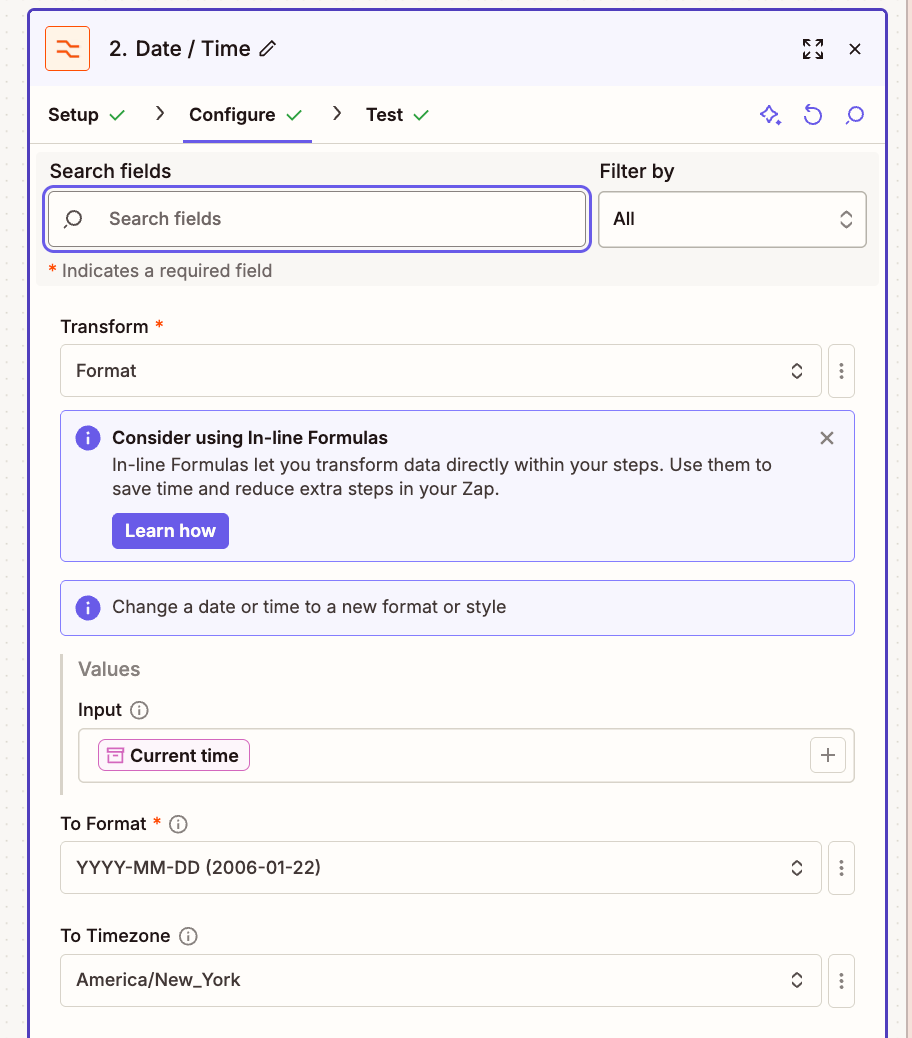
Add a Formatter by Zapier step to format today's date:
- Select the Date/Time event.
- Select the Format transform.
- In the Input field, click in the field and select Current time from the system variables.
- In the To Format field, enter
YYYY-MM-DD. - Leave the To Timezone field set to your preferred timezone.
-
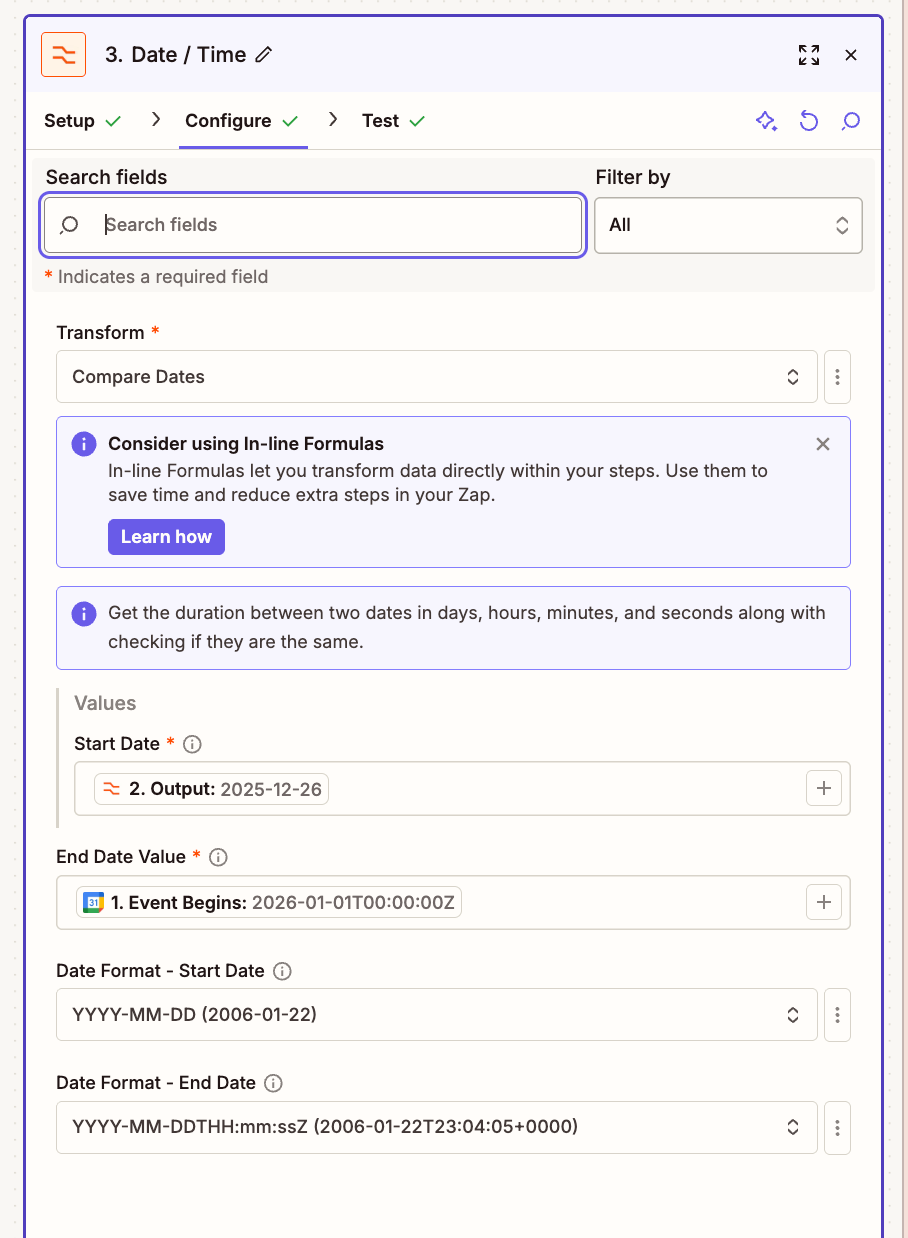
Add another Formatter by Zapier step to compare dates:
- Select the Date/Time event.
- Select the Compare Dates transform.
- In the Start Date field, map the Output from the previous Formatter step.
- In the End Date field, map the date field from your trigger (for example, Due Date).
-
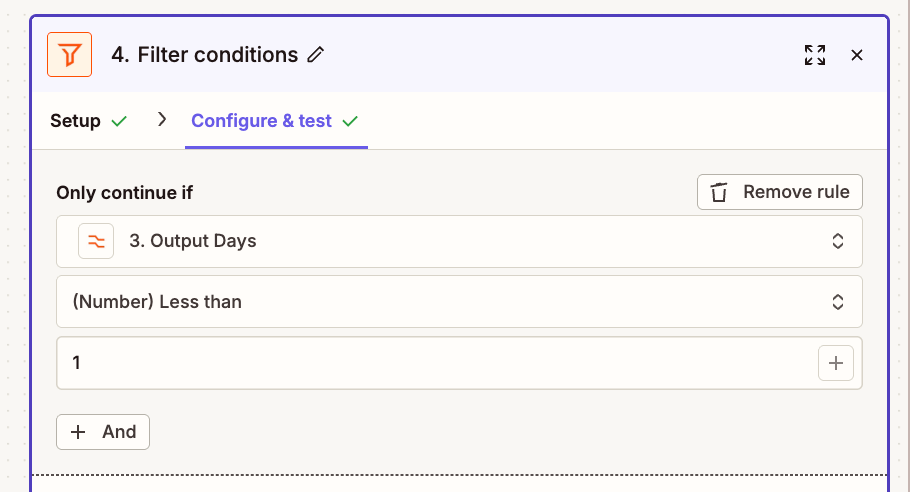
Add a Filter step to check if the dates match:
- In the Field dropdown, select the Output Days field from the Compare Dates step.
- Select (Number) Less than.
- Enter
1.
This setup ensures your Zap only runs when the due date matches today's date.