When you delete records or fields in Zapier Tables, they're moved to Trash instead of being permanently removed. Trash gives you 30 days to restore deleted items before they're permanently deleted.
Delete records or fields
When you delete records or fields from a table, they're automatically sent to Trash.
Delete records
-
Select the checkbox next to the records you want to delete.
- To select all visible records, select the checkbox at the header of the table.
- In the toolbar at the bottom of the table, click the Delete icon.
Delete fields
- Click the field header of the field you want to delete.
- Click Delete field.
Access Trash
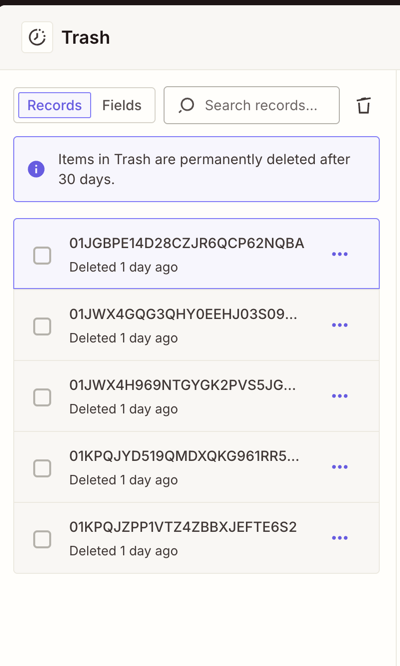
- In the toolbar, click the Trash icon . The Trash panel will open.
- Click the Records or Fields tab to switch between deleted records and deleted fields.
- Use the Search box to find a specific item.
To view a deleted record's original field values, click the record name in Trash. From the detail panel, you can also click Restore this record to restore it directly.
Restore items from Trash
- In the toolbar, click the Trash icon to open Trash.
- Click the Records or Fields tab to find the item you want to restore.
- Click the more options beside the item.
- Click Restore record. The item will be added back to your table.
To restore multiple items at once, select the checkbox beside each item, then click Restore.
Permanently delete items from Trash
Items in Trash are automatically and permanently deleted after 30 days. You can also permanently delete items before then:
- In the toolbar, click the Trash icon to open Trash.
- Click the more options beside the item you want to permanently delete.
- Click Delete forever.
Note
 Note
NoteDeleting an item from Trash cannot be undone.
Limitations
- Items in Trash are permanently deleted after 30 days.
- Restoring a record will place it back in the table, but it may not return to its original position.