Available on plans:

Free

Pro
Advanced
The Schedule meeting logic type lets you display an inline calendar directly in the chat window, so users can schedule a meeting without leaving the conversation. You can display the calendar when the conversation starts or when a user enters a specific keyword.
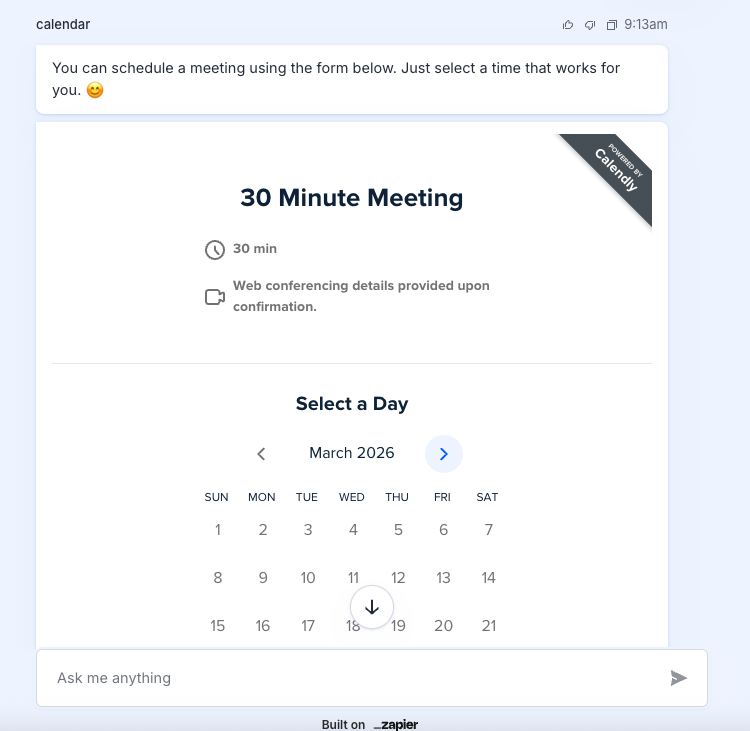
Create the Schedule meeting logic
- From the Chatbots home, select your chatbot.
- Click the Logic tab.
- Click + Add logic and select Schedule meeting.
-
In the When to show calendar dropdown menu, select when the chatbot should display the calendar:
- At the beginning of the conversation.
- When keywords are used.
-
The next step depends on the option you select in the When to show calendar dropdown menu.
At the beginning of the conversation
- In the Calendar Link field, enter your Calendly URL path.
- Click Create logic.
When keywords are used
- In the Keywords section, you can keep the existing examples or edit them by entering a new value in the text field.
-
(Optional) Click + Add keyword to add more keywords.
- You can add up to 10 keywords.
- In the Calendar Link field, enter your Calendly URL path.
- Click Create logic.
Edit keywords
If you're using keywords for this logic type, you can edit them at any time:
- On the left sidebar, select Logic.
-
Click Schedule meeting.
- Click the text field of a keyword to edit its text.
- Click and drag the Drag icon
- Use the Delete icon beside a keyword to remove it.
- Click Save.

 beside a keyword to remove it.