You can use managed user details to personalize different components of your form project in Zapier Forms. The code snippets below allow you to customize components to display a user's ID, email, or name.
Available on plans:

Free

Professional
Team
Enterprise
| Managed user information | Code snippet to use |
|---|---|
| ID | {{currentUser.id}} |
| {{currentUser.email}} | |
| Name | {{currentUser.name}} |
 Note
NoteThe ID is a unique string of letters and numbers automatically assigned when a user is created in a form project and cannot be changed.
Text component
- From the Forms home, click the title of your form project.
- On the pages view, select the page that has your text component.
- Click your text component to expand the right sidebar.
-
In the Content field, enter a code snippet for the field you want to display.
- Repeat this step for each field you want to use.
- Changes will be automatically saved and reflected on the preview.

The space where you place the managed user information will display the default text while editing your page.
Form component
- From the Forms home, click the title of your form project.
- On the pages view, select the page that has your form component.
- On the form component, click the field you want to use.
- A sidebar will open. Paste the code snippet into the Default value field.

Whenever a managed user opens the form page, the field will be pre-filled with their information. The field can still be edited by the user.
The field where you place the managed user information will appear blank while editing your page.
Table component
- From the Forms home, click the title of your form project.
- On the Pages view, select the page that has your table component. A sidebar will open.
- From the sidebar, select the Data tab.
- Click Filter. Three new fields will appear.
- Click the first dropdown menu, then select the field that you want to filter.
- Click the second dropdown menu and select the Is exactly rule.
- Click the text field and paste the code snippet you want to use in the filter.
- Click Save changes.
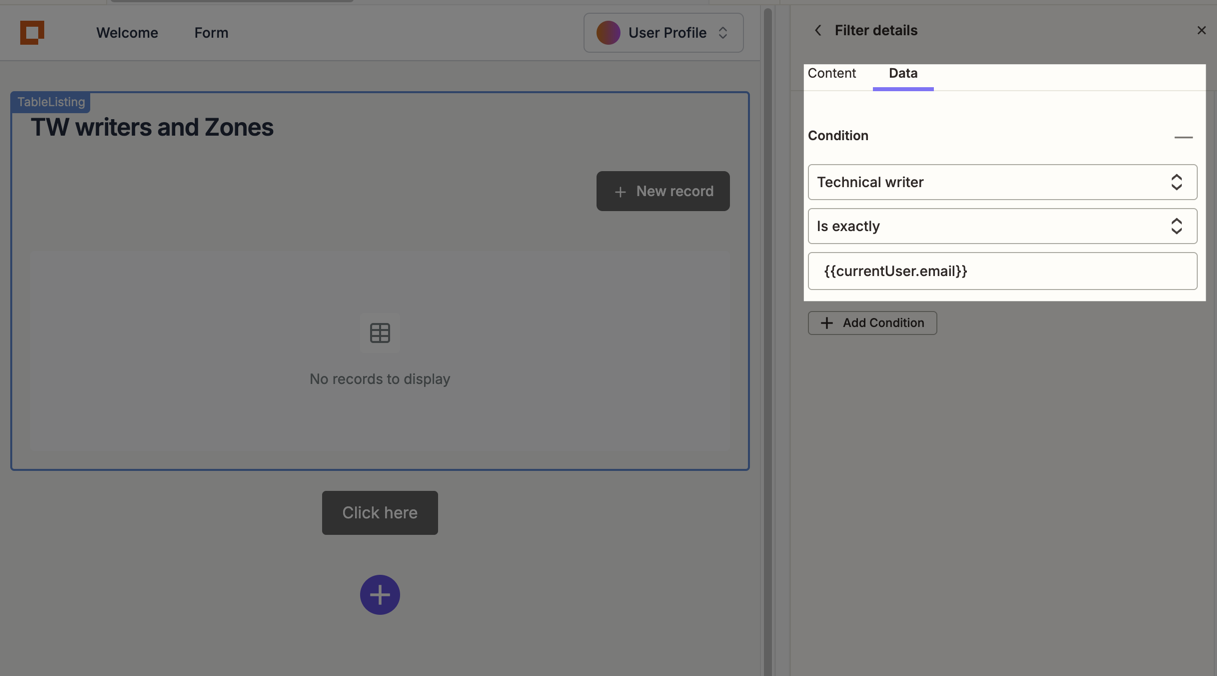
Whenever a managed user views the table, it will be filtered to items that match their user information, such as their email or name.
Once you personalize a filter with user details, the table will appear blank while editing your page.
Personalization without managed users
If your form project does not have managed users, you can still personalize components using form content.